> ## Documentation Index
> Fetch the complete documentation index at: https://docs.chift.eu/llms.txt
> Use this file to discover all available pages before exploring further.

# Oracle Simphony

# PRÉPARATION

Contactez votre Account Manager Oracle pour configurer l'API BI. Cela nécessite une licence supplémentaire et est lié au portail Reporting & Analytics ainsi qu'à l'API BI.

Les versions suivantes sont nécessaires :

* Min. 20.1 pour le portail Reporting & Analytics
* Accès à l'API BI

Une fois la configuration effectuée par Oracle, vous recevrez les informations suivantes pour vous connecter :

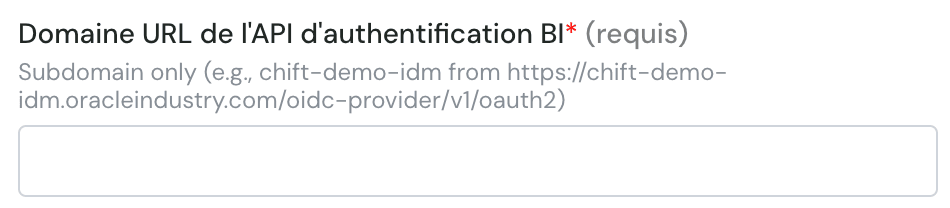
* Domaine de l'URL de l'API d'authentification BI (URL avec .oracleindustry.com/oidc-provider/v1/oauth2)
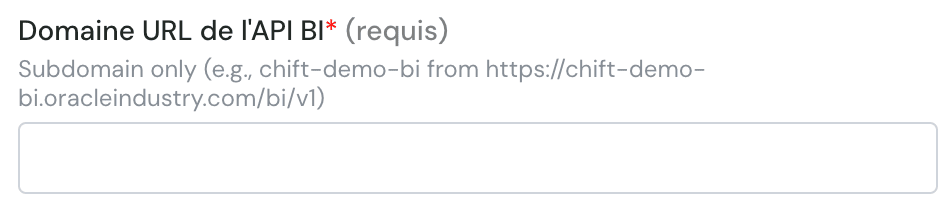
* Domaine de l'URL de l'API BI (URL avec /bi/v1)
* Client ID
* Nom d'utilisateur de l'API
* Mot de passe de l'API
* Enterprise Short Name (OPN par défaut)

Voici ce que vous devez renseigner dans le formulaire.

# CONNEXION

**Étape 1 :** Choisissez un nom pour votre connexion.

<img src="https://mintcdn.com/chift/BdpOGZbsoSOAHSl9/images/help/oracle-simphonypreparation/oracle-simphonypreparation-fr-1.png?fit=max&auto=format&n=BdpOGZbsoSOAHSl9&q=85&s=3430553cd180f580416acc40b6a03c60" alt="" width="964" height="182" data-path="images/help/oracle-simphonypreparation/oracle-simphonypreparation-fr-1.png" />

**Étape 2 :** Saisissez le sous-domaine de l'url d'authentification BI (voir ci-dessus)
<img src="https://mintcdn.com/chift/BdpOGZbsoSOAHSl9/images/help/oracle-simphonypreparation/oracle-simphonypreparation-fr-2.png?fit=max&auto=format&n=BdpOGZbsoSOAHSl9&q=85&s=04f77e7af5a4e7877813b24c85a9c9c2" alt="image.png" width="950" height="208" data-path="images/help/oracle-simphonypreparation/oracle-simphonypreparation-fr-2.png" />

**Étape 3 :** Saisissez le sous-domaine de l'url de l'API BI (voir ci-dessus)
<img src="https://mintcdn.com/chift/BdpOGZbsoSOAHSl9/images/help/oracle-simphonypreparation/oracle-simphonypreparation-fr-3.png?fit=max&auto=format&n=BdpOGZbsoSOAHSl9&q=85&s=12226ab076a2fd2a167f0053fa0e7dc9" alt="image.png" width="952" height="206" data-path="images/help/oracle-simphonypreparation/oracle-simphonypreparation-fr-3.png" />

**Étape 4 :** Saisissez le client id

<img src="https://mintcdn.com/chift/BdpOGZbsoSOAHSl9/images/help/oracle-simphonypreparation/oracle-simphonypreparation-fr-4.png?fit=max&auto=format&n=BdpOGZbsoSOAHSl9&q=85&s=a4f149f406436567e655ed547488644e" alt="image.png" width="954" height="150" data-path="images/help/oracle-simphonypreparation/oracle-simphonypreparation-fr-4.png" />

**Étape 5 :** Saisissez le nom d'utilisateur de l'API

<img src="https://mintcdn.com/chift/BdpOGZbsoSOAHSl9/images/help/oracle-simphonypreparation/oracle-simphonypreparation-fr-5.png?fit=max&auto=format&n=BdpOGZbsoSOAHSl9&q=85&s=53db6ff7b6b80b8b35a5f9d1f0bac3f0" alt="image.png" width="952" height="152" data-path="images/help/oracle-simphonypreparation/oracle-simphonypreparation-fr-5.png" />

**Étape 6 :** Saisissez l'enterprise short name (par ex. OPN)

<img src="https://mintcdn.com/chift/BdpOGZbsoSOAHSl9/images/help/oracle-simphonypreparation/oracle-simphonypreparation-fr-6.png?fit=max&auto=format&n=BdpOGZbsoSOAHSl9&q=85&s=0d110df6d9381d6ff8fe72abece18554" alt="image.png" width="948" height="146" data-path="images/help/oracle-simphonypreparation/oracle-simphonypreparation-fr-6.png" />

**Étape 7 :** Saisissez le mot de passe de l'API

<img src="https://mintcdn.com/chift/BdpOGZbsoSOAHSl9/images/help/oracle-simphonypreparation/oracle-simphonypreparation-fr-7.png?fit=max&auto=format&n=BdpOGZbsoSOAHSl9&q=85&s=782196cbd263c088422b49b52a1f421d" alt="image.png" width="956" height="146" data-path="images/help/oracle-simphonypreparation/oracle-simphonypreparation-fr-7.png" />

<img src="https://mintcdn.com/chift/BdpOGZbsoSOAHSl9/images/help/oracle-simphonypreparation/oracle-simphonypreparation-fr-8.png?fit=max&auto=format&n=BdpOGZbsoSOAHSl9&q=85&s=4bd2534a58abb4fafe73249fec129052" alt="" width="254" height="114" data-path="images/help/oracle-simphonypreparation/oracle-simphonypreparation-fr-8.png" />