> ## Documentation Index
> Fetch the complete documentation index at: https://docs.chift.eu/llms.txt
> Use this file to discover all available pages before exploring further.
# Qonto
# CONNEXION
**Étape 1 :** Choisissez un nom pour votre connexion.
 **Étape 2 :** Cliquez sur « Autoriser » pour finaliser la connexion.
 # AUTHENTIFICATION
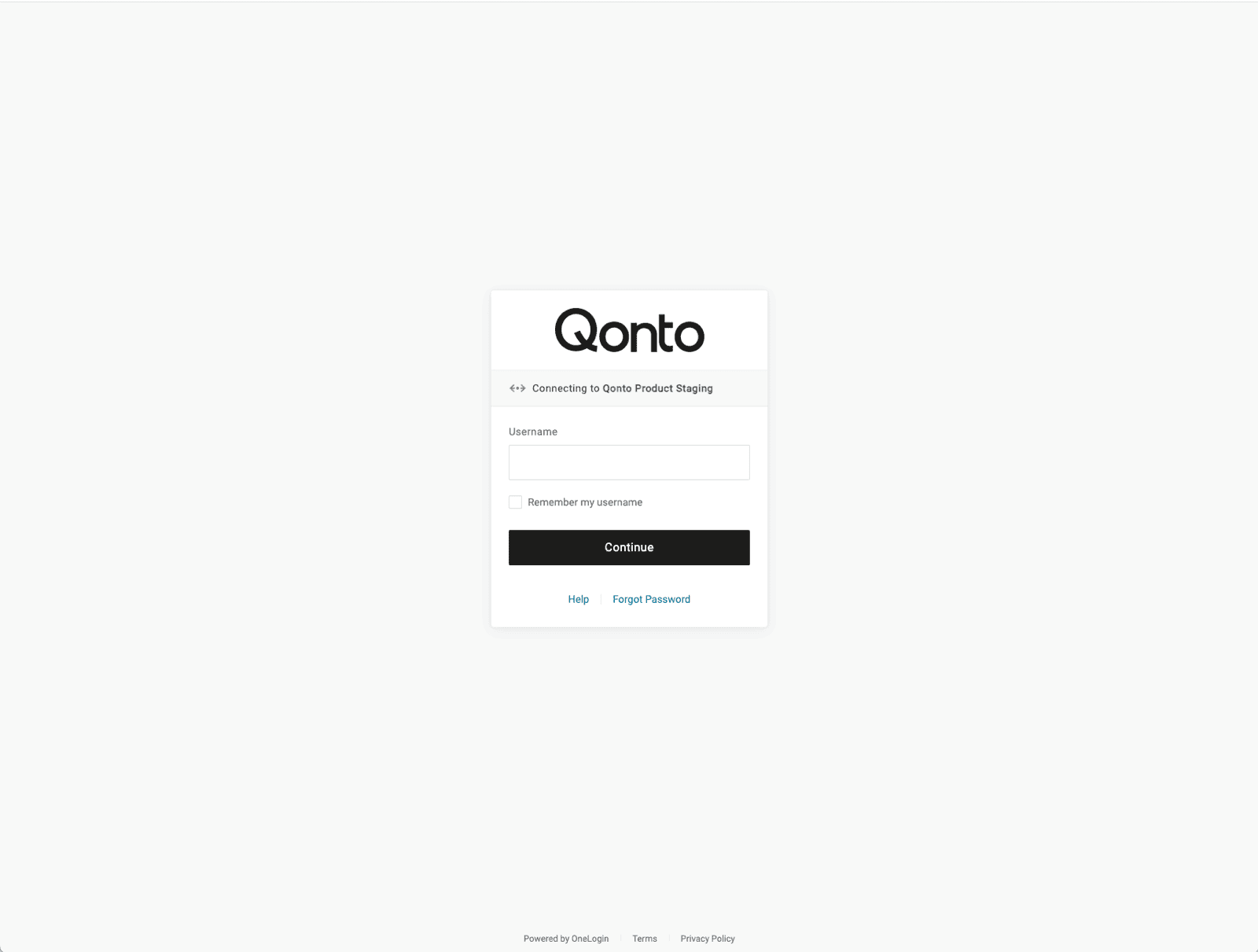
Vous serez redirigé vers une page de connexion Qonto pour vous authentifier. Suivez les étapes pour authentifier votre compte Qonto
1. Connectez-vous à votre compte Qonto
# AUTHENTIFICATION
Vous serez redirigé vers une page de connexion Qonto pour vous authentifier. Suivez les étapes pour authentifier votre compte Qonto
1. Connectez-vous à votre compte Qonto
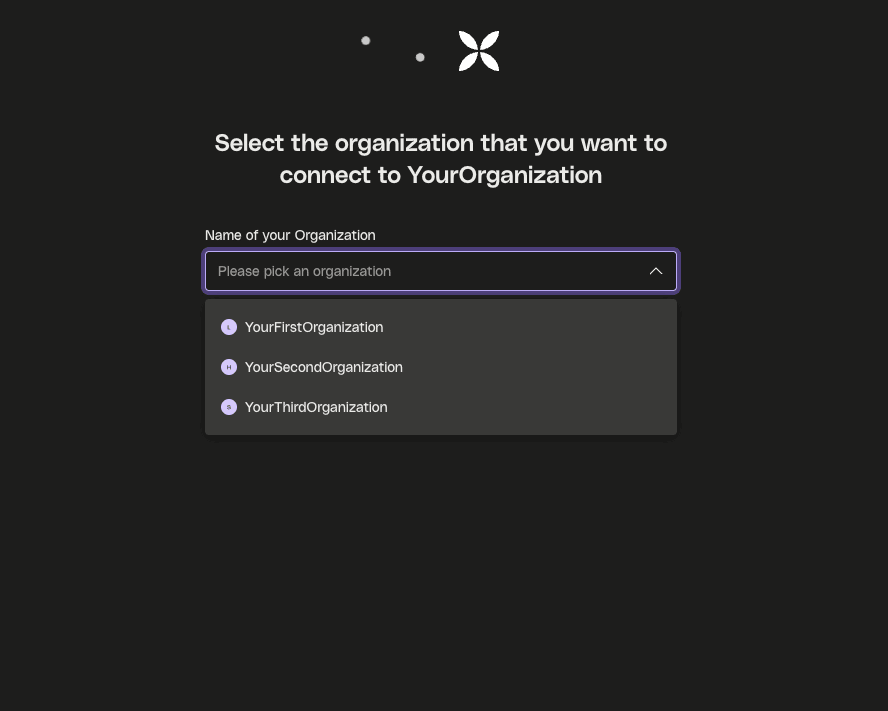
 2. Sélectionnez l'organisation que vous souhaitez connecter
 ## **🎉 Vous êtes maintenant connecté à Qonto avec succès**