> ## Documentation Index
> Fetch the complete documentation index at: https://docs.chift.eu/llms.txt
> Use this file to discover all available pages before exploring further.
# Shopify
# **PRÉPARATION**
1. Identifiez le nom technique de votre « store » sur Shopify
 # CONNEXION
**Étape 1 :** Choisissez un nom pour votre connexion (informatif).
# CONNEXION
**Étape 1 :** Choisissez un nom pour votre connexion (informatif).
 **Étape 2 :** Saisissez le nom technique de votre store, trouvé précédemment sur votre compte.
 **Étape 3** : (**Facultatif**) Saisissez le client id / client secret de votre app. Si ceux-ci vous sont demandés, veuillez vous rendre à la section « **Configuration - Custom app** » plus bas dans ce guide. Sinon, continuez à l'**étape 4a.**

 **Étape 4a :** Cliquez sur « Authorise » pour finaliser la connexion.
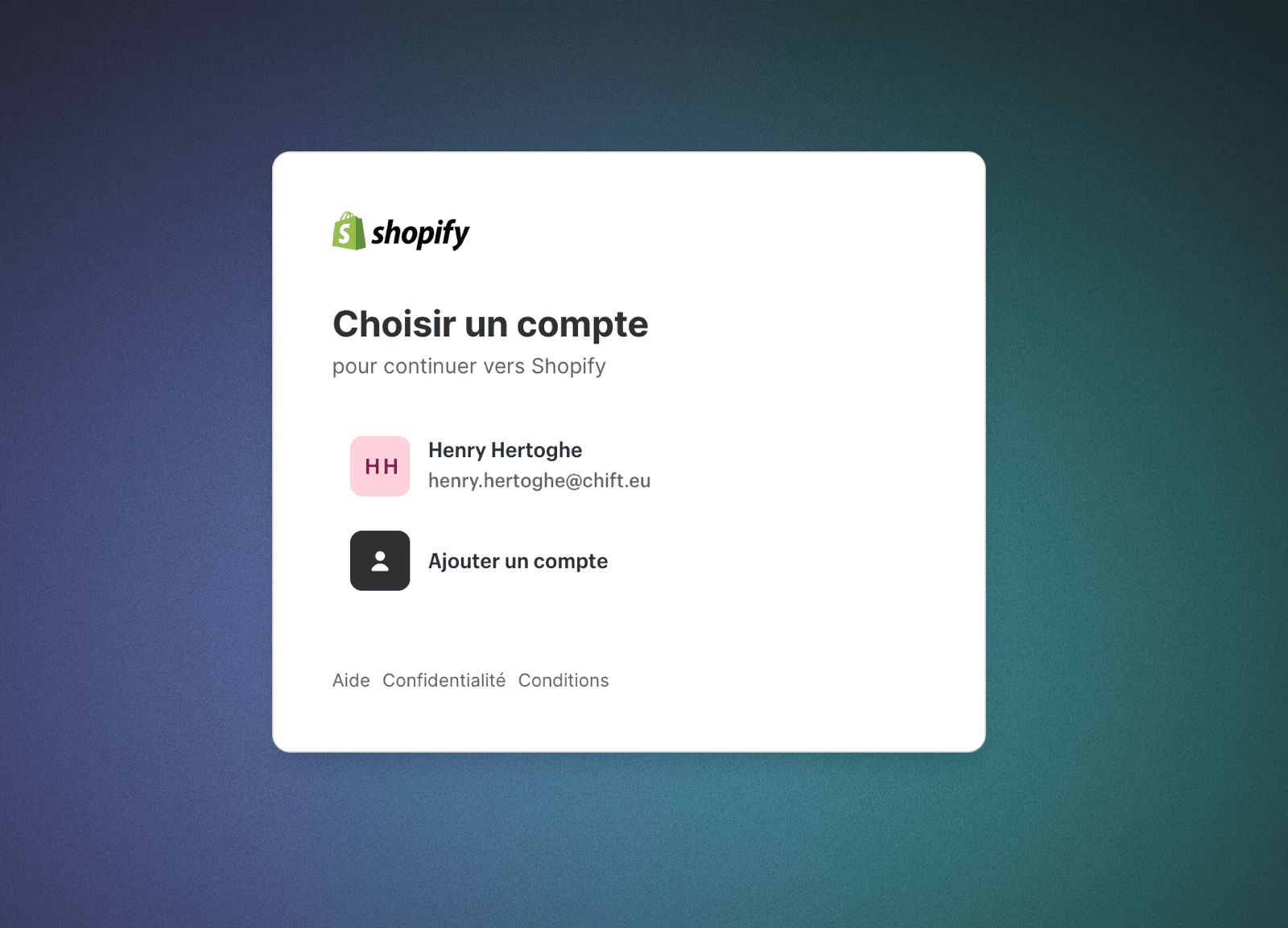 **Étape 5a :** Choisissez le store Shopify à connecter
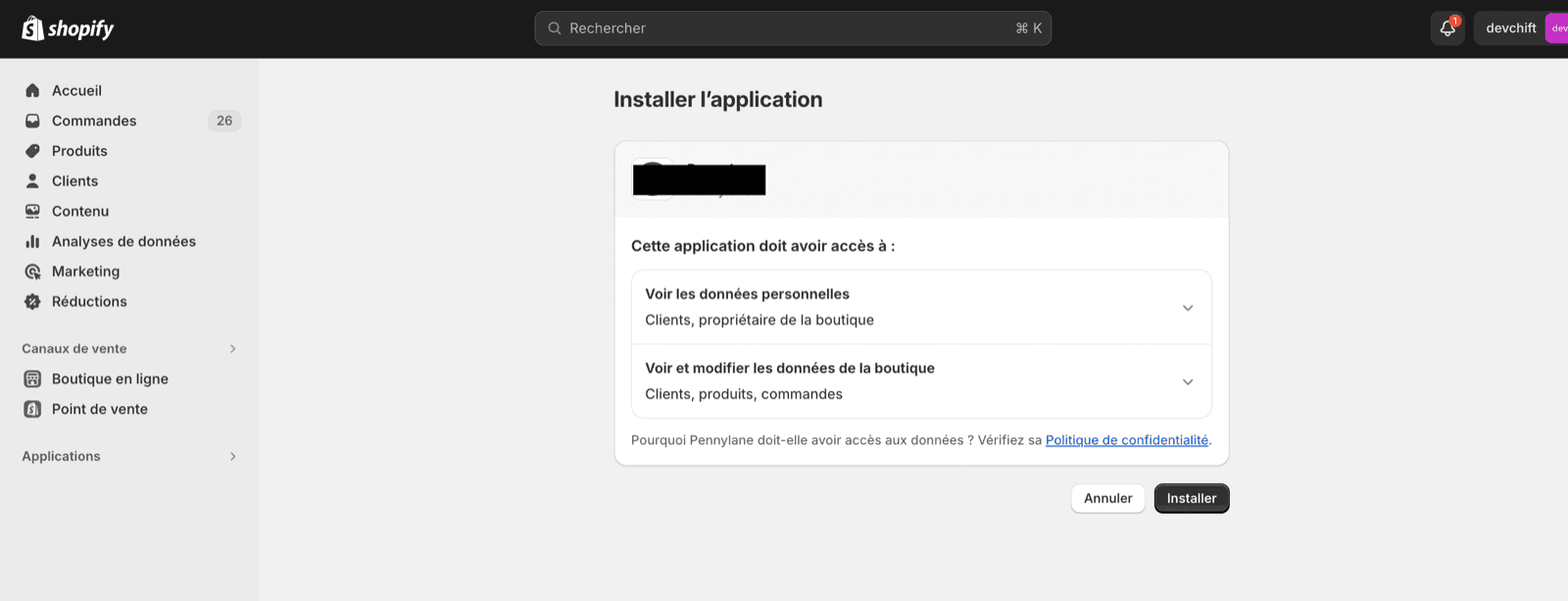
 **Étape 6a :** Installez l'app de votre partenaire que vous souhaitez connecter à Shopify.
 ### Configuration - custom app
Ne suivez ces étapes que si un client id et un client secret vous sont demandés.
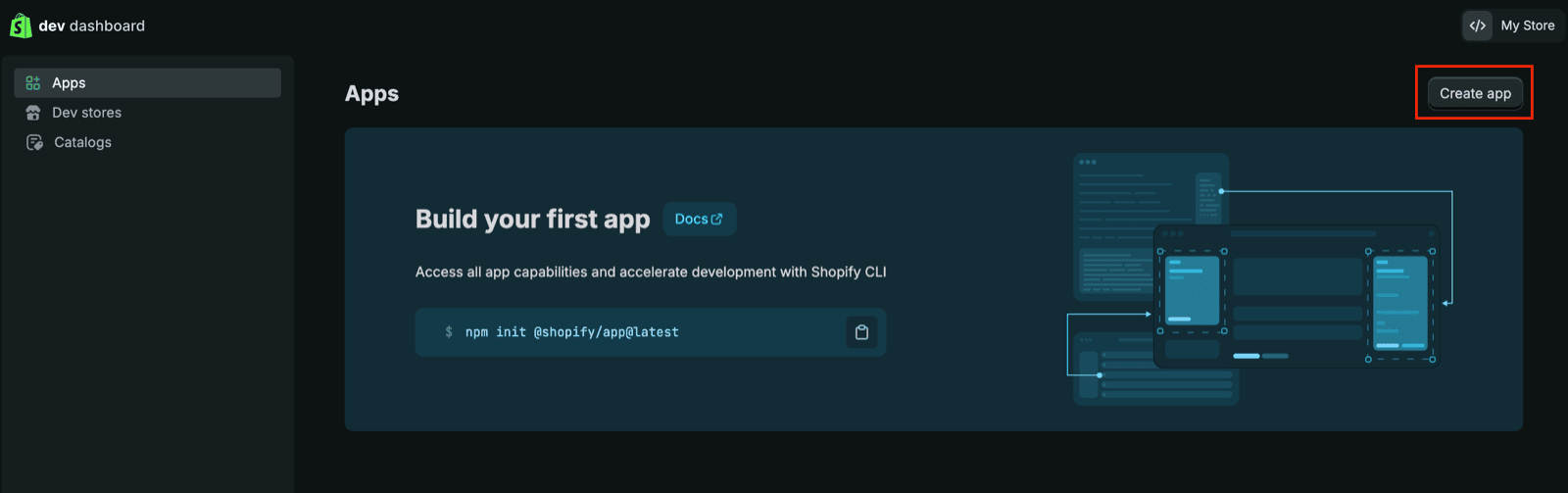
**Étape 4b :** Rendez-vous sur le Dev Dashboard ([https://dev.shopify.com/dashboard](https://dev.shopify.com/dashboard)) et suivez les étapes décrites dans cet article pour activer et créer une custom app :
* [https://shopify.dev/docs/apps/build/dev-dashboard/create-apps-using-dev-dashboard](https://shopify.dev/docs/apps/build/dev-dashboard/create-apps-using-dev-dashboard)
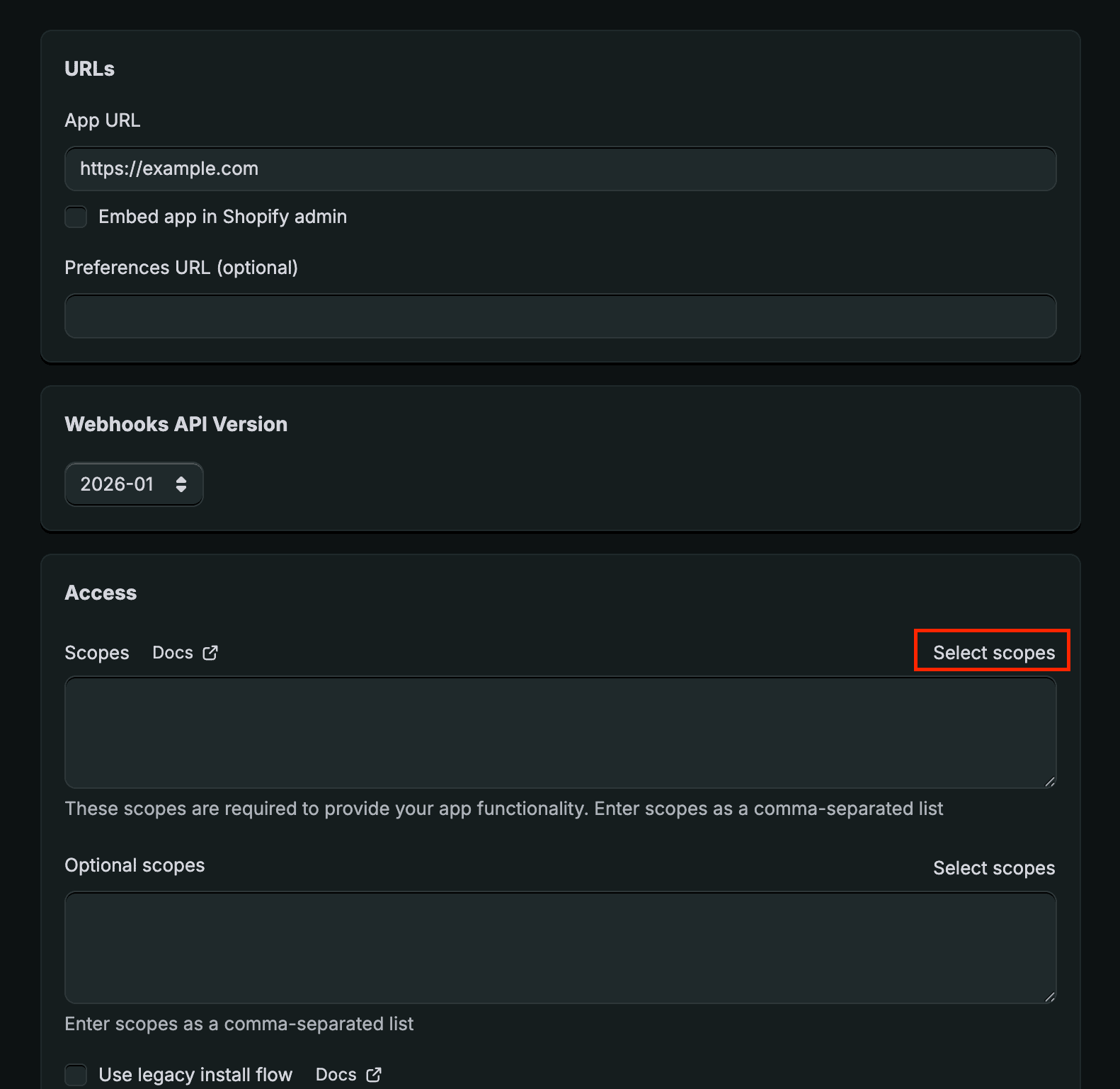
* Les scopes suivants sont nécessaires :
* read\_orders
* read\_all\_orders (si vous devez récupérer des commandes datant de plus de 60 jours). Notez que si vous créez l'app en tant que partenaire du marchand, vous devrez obtenir un accès supplémentaire via le partner dashboard, voir la documentation : [https://shopify.dev/docs/api/usage/access-scopes#orders-permissions](https://shopify.dev/docs/api/usage/access-scopes#orders-permissions). Une fois cela fait, vous pourrez voir « read\_all\_orders » parmi les scopes disponibles (rafraîchissez la page si nécessaire)
* read\_returns
* read\_discounts
* read\_products
* read\_customers
* L'url de redirection est la suivante « **[https://chift.app/oauth2/redirect](https://chift.app/oauth2/redirect)** ».
* Vous ne devez pas installer l'application.
Voici quelques captures d'écran illustrant les étapes :
### Configuration - custom app
Ne suivez ces étapes que si un client id et un client secret vous sont demandés.
**Étape 4b :** Rendez-vous sur le Dev Dashboard ([https://dev.shopify.com/dashboard](https://dev.shopify.com/dashboard)) et suivez les étapes décrites dans cet article pour activer et créer une custom app :
* [https://shopify.dev/docs/apps/build/dev-dashboard/create-apps-using-dev-dashboard](https://shopify.dev/docs/apps/build/dev-dashboard/create-apps-using-dev-dashboard)
* Les scopes suivants sont nécessaires :
* read\_orders
* read\_all\_orders (si vous devez récupérer des commandes datant de plus de 60 jours). Notez que si vous créez l'app en tant que partenaire du marchand, vous devrez obtenir un accès supplémentaire via le partner dashboard, voir la documentation : [https://shopify.dev/docs/api/usage/access-scopes#orders-permissions](https://shopify.dev/docs/api/usage/access-scopes#orders-permissions). Une fois cela fait, vous pourrez voir « read\_all\_orders » parmi les scopes disponibles (rafraîchissez la page si nécessaire)
* read\_returns
* read\_discounts
* read\_products
* read\_customers
* L'url de redirection est la suivante « **[https://chift.app/oauth2/redirect](https://chift.app/oauth2/redirect)** ».
* Vous ne devez pas installer l'application.
Voici quelques captures d'écran illustrant les étapes :


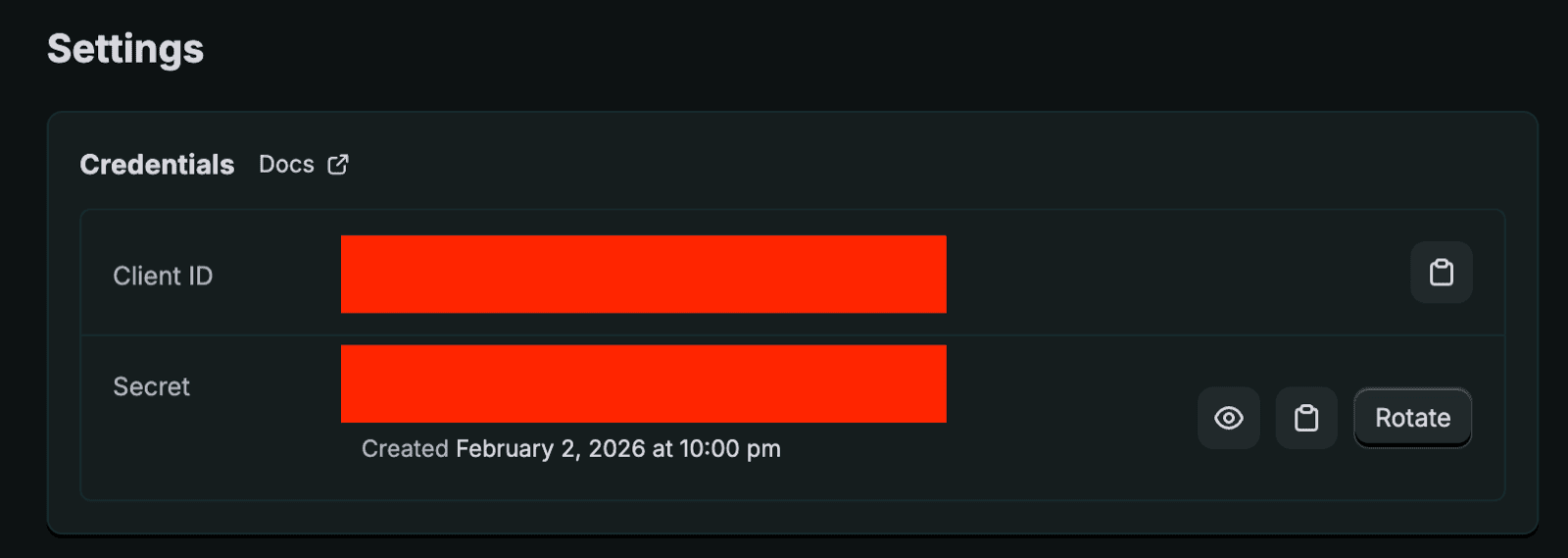 **Étape 5b :** Cliquez sur « Settings » dans le menu de gauche. Copiez le « Client id » / « Secret »
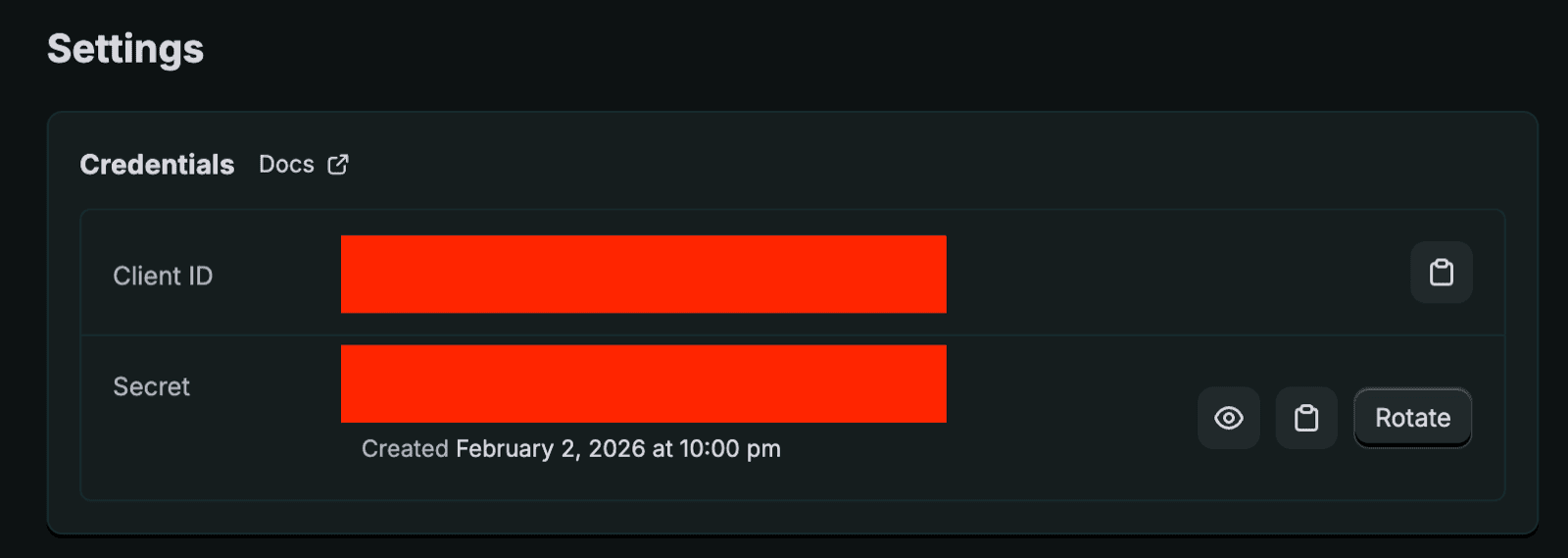 **Étape 6b :** Collez le client id / client secret dans les champs respectifs et cliquez sur « Authorise ». Vous serez redirigé et invité à installer l'application. Veuillez poursuivre pour réussir l'installation.