> ## Documentation Index
> Fetch the complete documentation index at: https://docs.chift.eu/llms.txt
> Use this file to discover all available pages before exploring further.
# WooCommerce
# 🛠 **PRÉPARATION**
## Comment trouver l'URL de votre compte
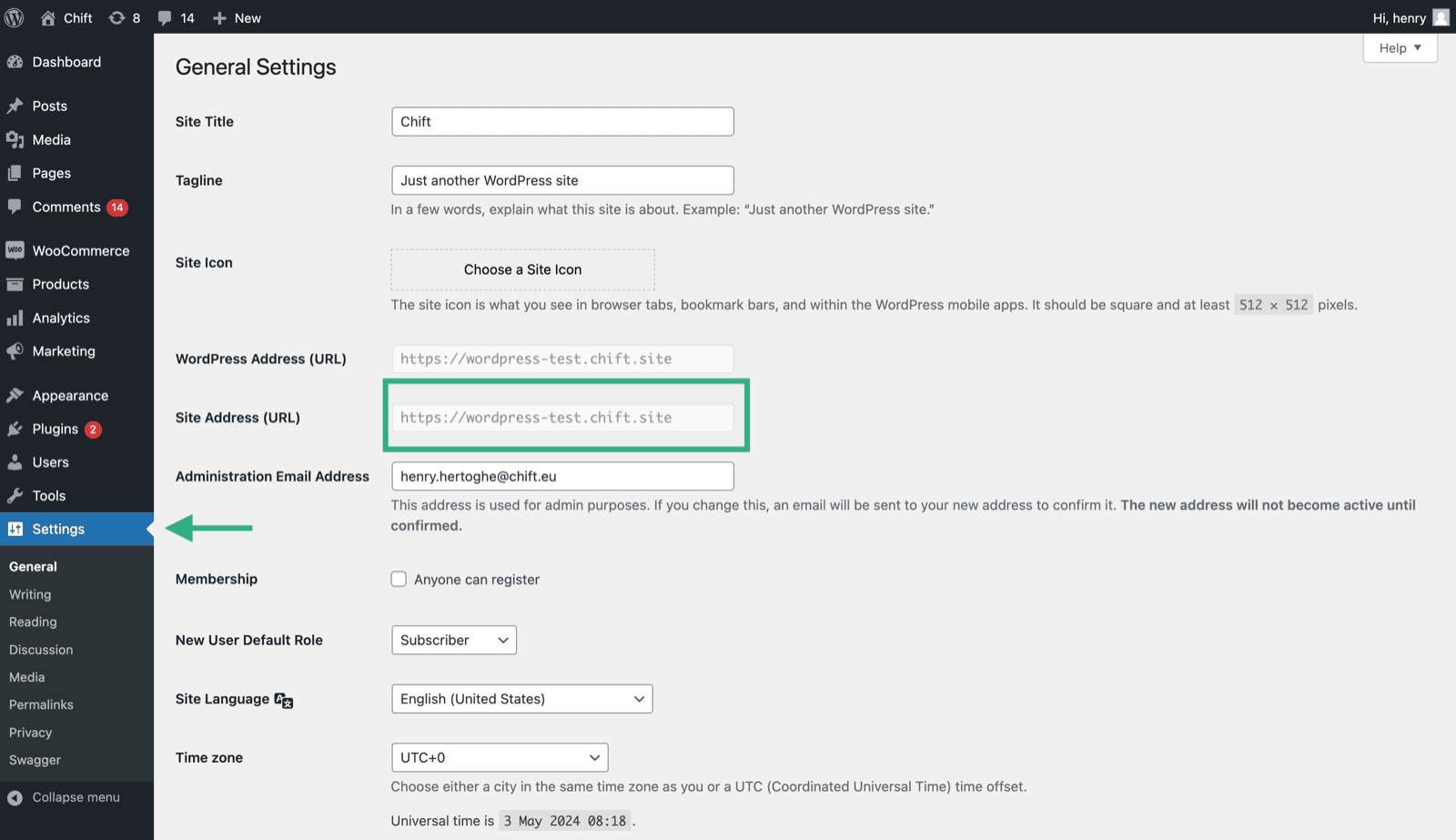 ## Comment trouver votre clé et votre secret client sur WooCommerce
1. Activez l'API REST sur votre compte WooCommerce
Depuis la version 9.0 de WooCommerce, l'extension dédiée « *WooCommerce Legacy REST API* » est requise. Vous pouvez l'installer depuis le menu Plugins.
**Les versions antérieures ne nécessitent pas ce module.**
## Comment trouver votre clé et votre secret client sur WooCommerce
1. Activez l'API REST sur votre compte WooCommerce
Depuis la version 9.0 de WooCommerce, l'extension dédiée « *WooCommerce Legacy REST API* » est requise. Vous pouvez l'installer depuis le menu Plugins.
**Les versions antérieures ne nécessitent pas ce module.**
 Ensuite, n'oubliez pas d'activer la Legacy API.
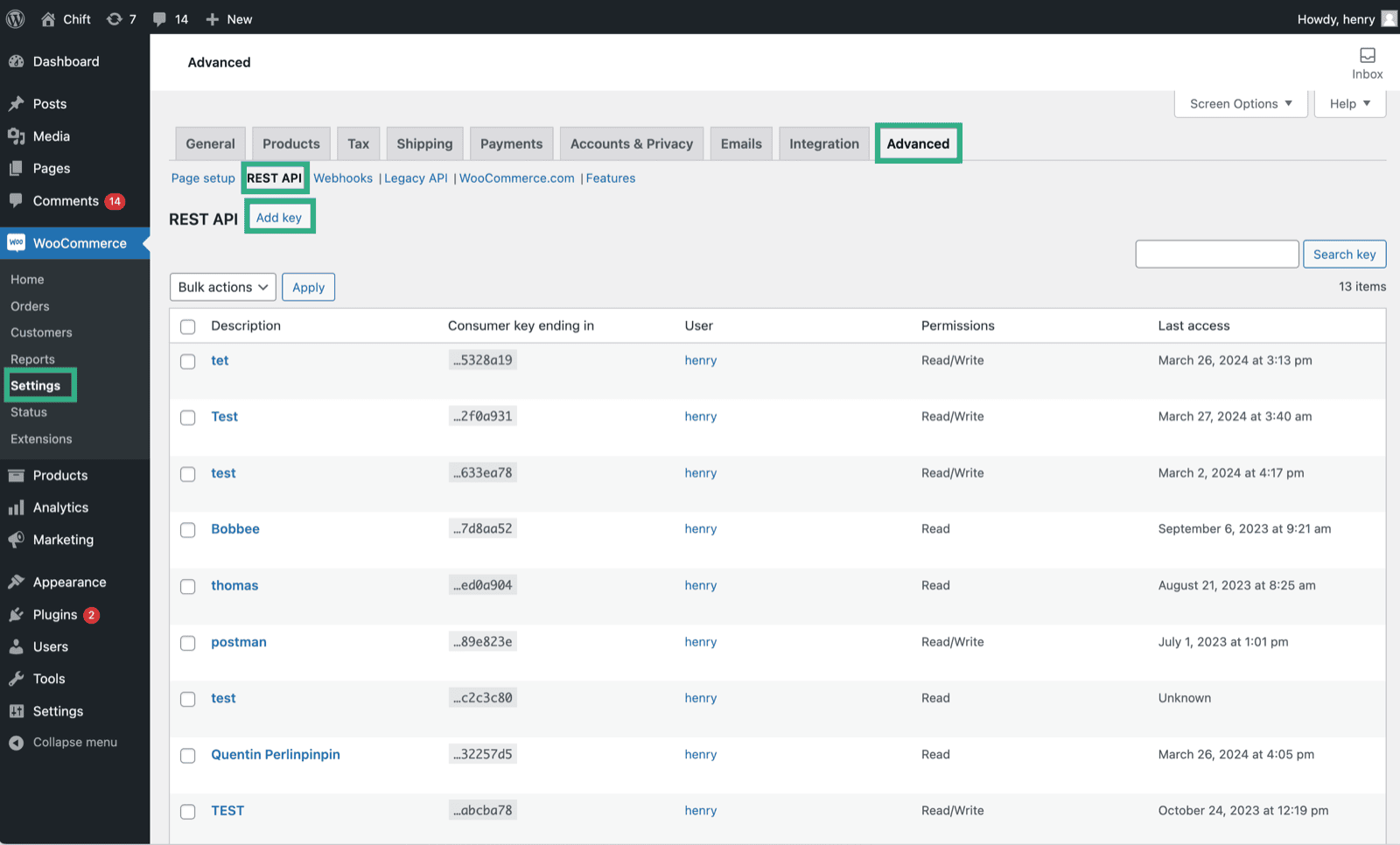 2. Créez une nouvelle clé API
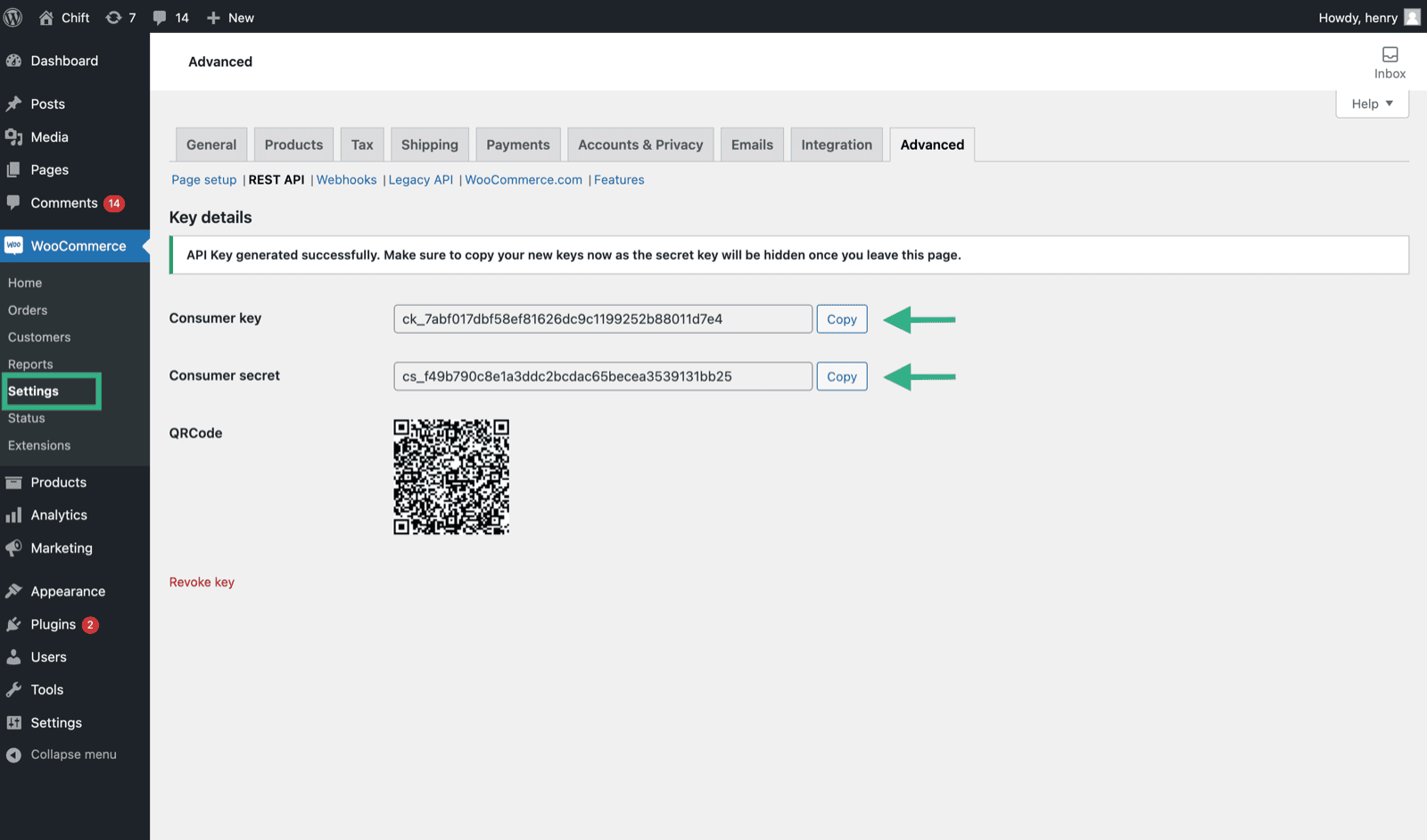 3. Copiez les codes de la clé client et du secret client de votre nouvelle clé API.
 # ⚡️ CONNEXION
**Étape 1 :** Choisissez un nom pour votre connexion.
# ⚡️ CONNEXION
**Étape 1 :** Choisissez un nom pour votre connexion.
 **Étape 2 :** Indiquez l'URL de votre compte WooCommerce.
 **Étape 3 :** Indiquez votre clé client (consumer key), que vous avez créée sur votre compte WooCommerce.
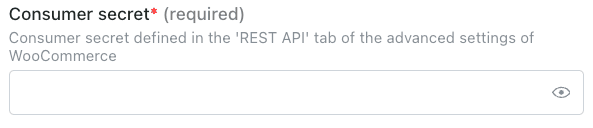 **Étape 4 :** Indiquez votre clé secrète client (consumer secret), que vous avez créée sur votre compte WooCommerce.
 **Étape 5 :** Cliquez sur « Connect » pour finaliser la connexion.