> ## Documentation Index
> Fetch the complete documentation index at: https://docs.chift.eu/llms.txt
> Use this file to discover all available pages before exploring further.
# Create a connection
A **connection** links one of your customers to one of their software packages. This page walks through creating one, from an empty consumer to a link your end-user can open.
New to the model? Read [How it works](/developer-guides/how-it-works) first. It defines connector, consumer, and connection in two minutes.
## Prerequisites
1. **An API key**, and a bearer token obtained from it — see [Authenticate with Chift API](/developer-guides/chift-authentication).
2. **At least one active connector** on your account — see [Activate a connector](/back-office/getting-started/activate-connector). Connectors you have not activated are invisible to the API and cannot be connected.
## Two ways to present the choice
The one thing that differs is **who shows your end-user the list of connectors to choose from**. Everything else in the flow is the same. It is a trade-off between a native experience and how much you build.
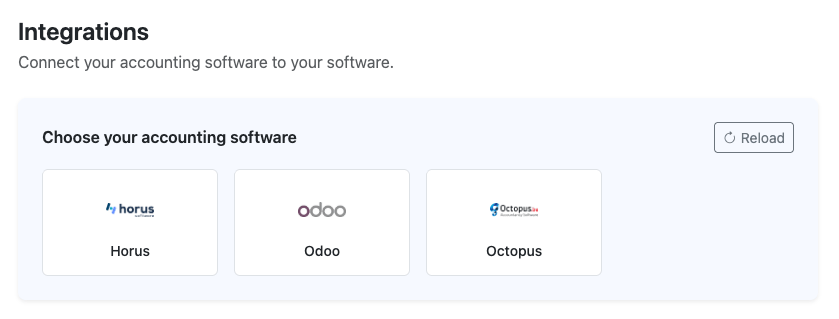
**Embedded marketplace** — you show the connector choice inside your own product. The most seamless, on-brand experience for your end-user, but you build and maintain that screen.
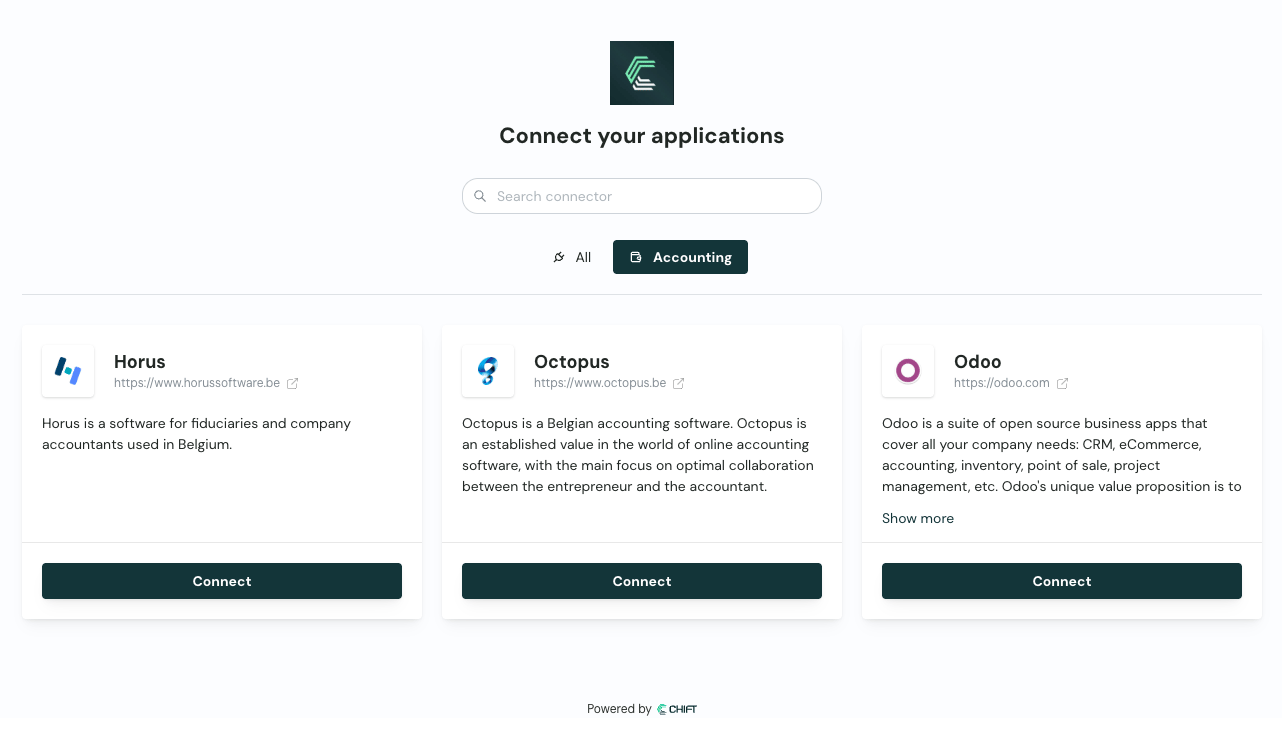
 **Chift marketplace** — Chift hosts the connector picker. Nothing to build on your side, but your end-user briefly leaves your interface for a Chift-hosted page.
 Both end the same way: a link you send your end-user. The mechanics differ only slightly. The embedded path uses the [fetch-connectors step](#the-flow) and passes an `integrationid`; the Chift path skips both.
## The flow
Only if you don't already have a `consumerid` for this customer.
```bash theme={null}
curl -X POST https://api.chift.eu/consumers \
-H "Authorization: Bearer YOUR_ACCESS_TOKEN" \
-H "Content-Type: application/json" \
-d '{
"name": "Your customer's company name",
"internal_reference": "your-internal-customer-id",
"email": "contact@your-customer.example",
"redirect_url": "https://yourapp.example/integrations/callback"
}'
```
| Field | Required | Notes |
| -------------------- | -------- | ------------------------------------------------------------------------------------------------------------------------------------------------------------------------------------- |
| `name` | Yes | Shown in your Chift platform and used in automated emails. |
| `email` | No | Used for [activation reminders](/back-office/user-onboarding/email-reminders) and emailing the [local agent](/back-office/advanced/local-agent) installer. |
| `internal_reference` | No | Your own ID for this customer. Makes reconciliation much easier later. |
| `redirect_url` | No | Where the end-user lands after activation. Can also be set once for the whole account — see [Activation links and redirects](/developer-guides/unified-api/activation-and-redirects). |
Store the returned `consumerid` on your customer record.
[API reference: Create new consumer ↗](/api-reference/endpoints/consumers/create-new-consumer)
Skip this step if you use the Chift marketplace.
```bash theme={null}
curl "https://api.chift.eu/integrations?status=active" \
-H "Authorization: Bearer YOUR_ACCESS_TOKEN"
```
`status=active` returns only the connectors you have activated. Each entry gives you:
* `integrationid` — an **integer**, the value you send in step 5. Note it is not a uuid, unlike most Chift identifiers.
* `name`, `description`, `api` — for display and grouping.
* `logo_url`, `icon_url` — ready-to-use image URLs. A [base64 endpoint](/api-reference/endpoints/integrations/returns-a-logoicon-of-an-integration-as-base64) also exists if you prefer to proxy them.
* `supported_countries`, `local_agent` — useful for filtering or warning the user upfront.
[API reference: Get list of integrations ↗](/api-reference/endpoints/integrations/get-list-of-integrations)
Render the list in your UI. To narrow it, filter on `supported_countries`, or on `api` if this part of your product only needs one Unified API.
```bash theme={null}
curl https://api.chift.eu/consumers/{consumerid}/connections \
-H "Authorization: Bearer YOUR_ACCESS_TOKEN"
```
This tells you whether to create or update, and lets you show current state in your UI. A consumer can have **only one connection per connector**, so creating a duplicate returns `400`.
Check the `status` on each entry — only an **active** connection can serve Unified API calls.
[API reference: Get connections ↗](/api-reference/endpoints/connections/get-connections)
**No connection yet** — `POST`:
```bash theme={null}
curl -X POST https://api.chift.eu/consumers/{consumerid}/connections \
-H "Authorization: Bearer YOUR_ACCESS_TOKEN" \
-H "Content-Type: application/json" \
-d '{
"integrationid": 42,
"name": "Odoo"
}'
```
| Field | Required | Notes |
| --------------- | -------- | --------------------------------------------------------------------------------------------------------------------------------------------------- |
| `integrationid` | No | Integer from step 2. Omit it to let the user choose on Chift's marketplace page. |
| `name` | No | Display name. Only valid **together with** `integrationid`. |
| `redirect` | No | Default `false`. Ignored when `integrationid` is set. See [Activation links and redirects](/developer-guides/unified-api/activation-and-redirects). |
| `country` | No | ISO 3166-1 alpha-2, filters the marketplace list. Ignored when `integrationid` is set. |
| `apis` | No | Restricts the marketplace to given Unified APIs. Ignored when `integrationid` is set. |
**Connection already exists** (expired credentials, or activation never finished) — `PATCH` it instead of deleting and recreating:
```bash theme={null}
curl -X PATCH https://api.chift.eu/consumers/{consumerid}/connections/{connectionid} \
-H "Authorization: Bearer YOUR_ACCESS_TOKEN" \
-H "Content-Type: application/json" \
-d '{"redirect": true}'
```
Never delete and recreate a connection to fix expired credentials. `PATCH` issues a fresh activation link while preserving the connection and its history.
Both calls return a single field: `url`.
[Add new connection ↗](/api-reference/endpoints/connections/add-new-connection) · [Update an existing connection ↗](/api-reference/endpoints/connections/update-an-existing-connection)
Redirect your end-user to the returned `url`, or email it to them.
The link is secured by a token that expires after **30 minutes**. Generate it when the user is about to click it, not in advance. If it expires, `PATCH` the connection for a fresh one.
With `integrationid` set, the link goes straight to that connector; without it, your end-user first picks their software on the Chift marketplace (see [Two ways to present the choice](#two-ways-to-present-the-choice)).
What the user then sees depends on the connector: an OAuth2 consent screen, a credentials form, or instructions to install the [local agent](/back-office/advanced/local-agent). Some connectors then ask follow-up questions — which accounting folder, which POS location.
When the user finishes, reload their connections and confirm at least one is `active`. Then you can call the Unified API for that consumer.
Do not rely on the redirect alone — a user who abandons the flow never triggers it. See [Monitoring & updating connections](/developer-guides/monitor-connections) for the webhook, polling, and redirect-parameter options, and which combination to use.
## Next steps
Confirm activation, then keep connections healthy.
Control where the user lands afterwards.
Every code the endpoints above can return.
Both end the same way: a link you send your end-user. The mechanics differ only slightly. The embedded path uses the [fetch-connectors step](#the-flow) and passes an `integrationid`; the Chift path skips both.
## The flow
Only if you don't already have a `consumerid` for this customer.
```bash theme={null}
curl -X POST https://api.chift.eu/consumers \
-H "Authorization: Bearer YOUR_ACCESS_TOKEN" \
-H "Content-Type: application/json" \
-d '{
"name": "Your customer's company name",
"internal_reference": "your-internal-customer-id",
"email": "contact@your-customer.example",
"redirect_url": "https://yourapp.example/integrations/callback"
}'
```
| Field | Required | Notes |
| -------------------- | -------- | ------------------------------------------------------------------------------------------------------------------------------------------------------------------------------------- |
| `name` | Yes | Shown in your Chift platform and used in automated emails. |
| `email` | No | Used for [activation reminders](/back-office/user-onboarding/email-reminders) and emailing the [local agent](/back-office/advanced/local-agent) installer. |
| `internal_reference` | No | Your own ID for this customer. Makes reconciliation much easier later. |
| `redirect_url` | No | Where the end-user lands after activation. Can also be set once for the whole account — see [Activation links and redirects](/developer-guides/unified-api/activation-and-redirects). |
Store the returned `consumerid` on your customer record.
[API reference: Create new consumer ↗](/api-reference/endpoints/consumers/create-new-consumer)
Skip this step if you use the Chift marketplace.
```bash theme={null}
curl "https://api.chift.eu/integrations?status=active" \
-H "Authorization: Bearer YOUR_ACCESS_TOKEN"
```
`status=active` returns only the connectors you have activated. Each entry gives you:
* `integrationid` — an **integer**, the value you send in step 5. Note it is not a uuid, unlike most Chift identifiers.
* `name`, `description`, `api` — for display and grouping.
* `logo_url`, `icon_url` — ready-to-use image URLs. A [base64 endpoint](/api-reference/endpoints/integrations/returns-a-logoicon-of-an-integration-as-base64) also exists if you prefer to proxy them.
* `supported_countries`, `local_agent` — useful for filtering or warning the user upfront.
[API reference: Get list of integrations ↗](/api-reference/endpoints/integrations/get-list-of-integrations)
Render the list in your UI. To narrow it, filter on `supported_countries`, or on `api` if this part of your product only needs one Unified API.
```bash theme={null}
curl https://api.chift.eu/consumers/{consumerid}/connections \
-H "Authorization: Bearer YOUR_ACCESS_TOKEN"
```
This tells you whether to create or update, and lets you show current state in your UI. A consumer can have **only one connection per connector**, so creating a duplicate returns `400`.
Check the `status` on each entry — only an **active** connection can serve Unified API calls.
[API reference: Get connections ↗](/api-reference/endpoints/connections/get-connections)
**No connection yet** — `POST`:
```bash theme={null}
curl -X POST https://api.chift.eu/consumers/{consumerid}/connections \
-H "Authorization: Bearer YOUR_ACCESS_TOKEN" \
-H "Content-Type: application/json" \
-d '{
"integrationid": 42,
"name": "Odoo"
}'
```
| Field | Required | Notes |
| --------------- | -------- | --------------------------------------------------------------------------------------------------------------------------------------------------- |
| `integrationid` | No | Integer from step 2. Omit it to let the user choose on Chift's marketplace page. |
| `name` | No | Display name. Only valid **together with** `integrationid`. |
| `redirect` | No | Default `false`. Ignored when `integrationid` is set. See [Activation links and redirects](/developer-guides/unified-api/activation-and-redirects). |
| `country` | No | ISO 3166-1 alpha-2, filters the marketplace list. Ignored when `integrationid` is set. |
| `apis` | No | Restricts the marketplace to given Unified APIs. Ignored when `integrationid` is set. |
**Connection already exists** (expired credentials, or activation never finished) — `PATCH` it instead of deleting and recreating:
```bash theme={null}
curl -X PATCH https://api.chift.eu/consumers/{consumerid}/connections/{connectionid} \
-H "Authorization: Bearer YOUR_ACCESS_TOKEN" \
-H "Content-Type: application/json" \
-d '{"redirect": true}'
```
Never delete and recreate a connection to fix expired credentials. `PATCH` issues a fresh activation link while preserving the connection and its history.
Both calls return a single field: `url`.
[Add new connection ↗](/api-reference/endpoints/connections/add-new-connection) · [Update an existing connection ↗](/api-reference/endpoints/connections/update-an-existing-connection)
Redirect your end-user to the returned `url`, or email it to them.
The link is secured by a token that expires after **30 minutes**. Generate it when the user is about to click it, not in advance. If it expires, `PATCH` the connection for a fresh one.
With `integrationid` set, the link goes straight to that connector; without it, your end-user first picks their software on the Chift marketplace (see [Two ways to present the choice](#two-ways-to-present-the-choice)).
What the user then sees depends on the connector: an OAuth2 consent screen, a credentials form, or instructions to install the [local agent](/back-office/advanced/local-agent). Some connectors then ask follow-up questions — which accounting folder, which POS location.
When the user finishes, reload their connections and confirm at least one is `active`. Then you can call the Unified API for that consumer.
Do not rely on the redirect alone — a user who abandons the flow never triggers it. See [Monitoring & updating connections](/developer-guides/monitor-connections) for the webhook, polling, and redirect-parameter options, and which combination to use.
## Next steps
Confirm activation, then keep connections healthy.
Control where the user lands afterwards.
Every code the endpoints above can return.