> ## Documentation Index
> Fetch the complete documentation index at: https://docs.chift.eu/llms.txt
> Use this file to discover all available pages before exploring further.

# Shopify

export const CoverageIframe = ({api = 'accounting', connectors}) => {
  const [theme, setTheme] = React.useState('light');
  const [isFullscreen, setIsFullscreen] = React.useState(false);
  const [currentIframeUrl, setCurrentIframeUrl] = React.useState(null);
  const iframeRef = React.useRef(null);
  React.useEffect(() => {
    const checkTheme = () => {
      const isDark = document.documentElement.classList.contains('dark');
      setTheme(isDark ? 'dark' : 'light');
    };
    checkTheme();
    const observer = new MutationObserver(checkTheme);
    observer.observe(document.documentElement, {
      attributes: true,
      attributeFilter: ['class']
    });
    return () => observer.disconnect();
  }, []);
  React.useEffect(() => {
    const handleFullscreenChange = () => {
      setIsFullscreen(!!document.fullscreenElement);
    };
    document.addEventListener('fullscreenchange', handleFullscreenChange);
    return () => document.removeEventListener('fullscreenchange', handleFullscreenChange);
  }, []);
  React.useEffect(() => {
    const handleMessage = event => {
      if (!event.origin.includes('chift-coverage-matrix.s3.eu-west-3.amazonaws.com')) return;
      if (event.data?.type === 'urlChange' && event.data?.url) {
        setCurrentIframeUrl(event.data.url);
      }
    };
    window.addEventListener('message', handleMessage);
    return () => window.removeEventListener('message', handleMessage);
  }, []);
  const queryParams = new URLSearchParams({
    api,
    theme,
    ...connectors ? {
      connectors
    } : {}
  });
  const iframeUrl = `https://chift-coverage-matrix.s3.eu-west-3.amazonaws.com/coverage.html?${queryParams.toString()}`;
  const openUrl = currentIframeUrl || iframeUrl;
  const toggleFullscreen = () => {
    if (!document.fullscreenElement) {
      iframeRef.current?.requestFullscreen();
    } else {
      document.exitFullscreen();
    }
  };
  const isDark = theme === 'dark';
  const buttonStyle = {
    display: 'inline-flex',
    alignItems: 'center',
    gap: '8px',
    padding: '4px 12px',
    fontSize: '14px',
    fontWeight: '500',
    color: isDark ? '#d4d4d4' : '#374151',
    backgroundColor: 'transparent',
    border: `1px solid ${isDark ? '#404040' : '#e5e7eb'}`,
    borderRadius: '12px',
    cursor: 'pointer',
    textDecoration: 'none',
    transition: 'all 0.15s ease'
  };
  const hoverBg = isDark ? 'rgba(255,255,255,0.05)' : 'rgba(0,0,0,0.03)';
  const hoverBorder = isDark ? '#525252' : '#d1d5db';
  const defaultBg = 'transparent';
  const defaultBorder = isDark ? '#404040' : '#e5e7eb';
  return <>
  <div style={{
    display: 'flex',
    justifyContent: 'flex-end',
    gap: '12px',
    marginBottom: '8px'
  }}>
    <button onClick={toggleFullscreen} style={buttonStyle} onMouseEnter={e => {
    e.target.style.backgroundColor = hoverBg;
    e.target.style.borderColor = hoverBorder;
  }} onMouseLeave={e => {
    e.target.style.backgroundColor = defaultBg;
    e.target.style.borderColor = defaultBorder;
  }}>
      <svg width="16" height="16" viewBox="0 0 24 24" fill="none" stroke="currentColor" strokeWidth="2" strokeLinecap="round" strokeLinejoin="round">
        {isFullscreen ? <>
            <polyline points="4 14 10 14 10 20"></polyline>
            <polyline points="20 10 14 10 14 4"></polyline>
            <line x1="14" y1="10" x2="21" y2="3"></line>
            <line x1="3" y1="21" x2="10" y2="14"></line>
          </> : <>
            <polyline points="15 3 21 3 21 9"></polyline>
            <polyline points="9 21 3 21 3 15"></polyline>
            <line x1="21" y1="3" x2="14" y2="10"></line>
            <line x1="3" y1="21" x2="10" y2="14"></line>
          </>}
      </svg>
      {isFullscreen ? 'Exit Fullscreen' : 'Fullscreen'}
    </button>
    <a href={iframeUrl} target="_blank" rel="noopener noreferrer" style={buttonStyle} onMouseEnter={e => {
    e.target.style.backgroundColor = hoverBg;
    e.target.style.borderColor = hoverBorder;
  }} onMouseLeave={e => {
    e.target.style.backgroundColor = defaultBg;
    e.target.style.borderColor = defaultBorder;
  }}>
      <svg width="16" height="16" viewBox="0 0 24 24" fill="none" stroke="currentColor" strokeWidth="2" strokeLinecap="round" strokeLinejoin="round">
        <path d="M18 13v6a2 2 0 0 1-2 2H5a2 2 0 0 1-2-2V8a2 2 0 0 1 2-2h6"></path>
        <polyline points="15 3 21 3 21 9"></polyline>
        <line x1="10" y1="14" x2="21" y2="3"></line>
      </svg>
      Open in new tab
    </a>
  </div>
  <iframe ref={iframeRef} src={iframeUrl} title={`Chift Coverage Matrix - ${api}`} style={{
    height: 'max(500px, 80vh)'
  }} className="w-full" allowFullScreen />
  <blockquote>
    <p>
      <strong>Matrix Legend 🧭</strong>
    </p>
    <table>
      <thead>
        <tr>
          <th>Status</th>
          <th>Meaning</th>
        </tr>
      </thead>
      <tbody>
        <tr>
          <td>✅ Implemented</td>
          <td>Endpoint is implemented and available.</td>
        </tr>
        <tr>
          <td>❌ Not supported</td>
          <td>
            Endpoint is not supported by the target software (connector
            limitation). Cannot be implemented.
          </td>
        </tr>
        <tr>
          <td>💬 On request</td>
          <td>
            Endpoint is not implemented but feasibility is validated. Can be
            implemented on request — contact your Chift point of contact to
            discuss scope and timing.
          </td>
        </tr>
        <tr>
          <td>🔎 To be analyzed</td>
          <td>
            Endpoint is not implemented and feasibility has not yet been fully
            assessed. Analysis is pending.
          </td>
        </tr>
      </tbody>
    </table>
  </blockquote>
</>;
};

<Card title="General Information" icon={<img src="/assets/icons/shopify.png" alt="Shopify" />}>
  Website: [shopify.com](https://www.shopify.com)\
  Software type: Solution as a Software (Saas)\
  Geography: 🌍 Worldwide
</Card>

## Introduction

Shopify is a comprehensive e-commerce platform that allows businesses of all sizes to create, manage, and scale their online stores. It offers a wide range of features, including customizable storefronts, payment processing, inventory management, and marketing tools. Shopify is known for its ease of use, extensive app integrations, and scalability, making it a popular choice for entrepreneurs and established businesses looking to sell products online and across multiple sales channels.

## Configure Shopify

**Prerequisite(s)**
You have two options to enable Shopify for your customers:

* Public app:
  * Obtain a Client ID and Client Secret to set up the connector Shopify
  * Get Shopify’s approval for your partner application. This is a long and difficult process.
  * Authentication is easy for your client. Your app can be listed or unlisted.
* Private app:
  * No prerequisite to activate the connector.
  * Your end-users need to create a custom app to be able to authenticate (this is documented in our [help guides](https://help.chift.app/articles/1709525914-shopify?lang=en)).

Depending on your choice, you will be able to activate the connector in Chift:

* Enter client id / client secret if you went for option 1 (Enable OAuth2)
* Otherwise do not check "Enable OAuth2" and enable the connector

Description of both apps is described [here](https://help.shopify.com/en/manual/apps/app-types).

**Activation Process**
This is the process if you want to create a public app:

1. Create your partner account using this [link](https://accounts.shopify.com/signup)
2. On your Partner account, create an API and OAuth2 application.
   * [Create an account](https://partners.shopify.com/signup/developer) on the Shopify Partners site
   * Click on 'Apps' in the side panel
   * Click on 'Create app' on the 'Apps' page
   * Click on 'Create app manually'
   * Fill in the 'General settings'
   * Add [https://chift.app/oauth2/redirect](https://chift.app/oauth2/redirect) in the 'Allowed redirection URL(s)' section
   * Click on 'Create app'
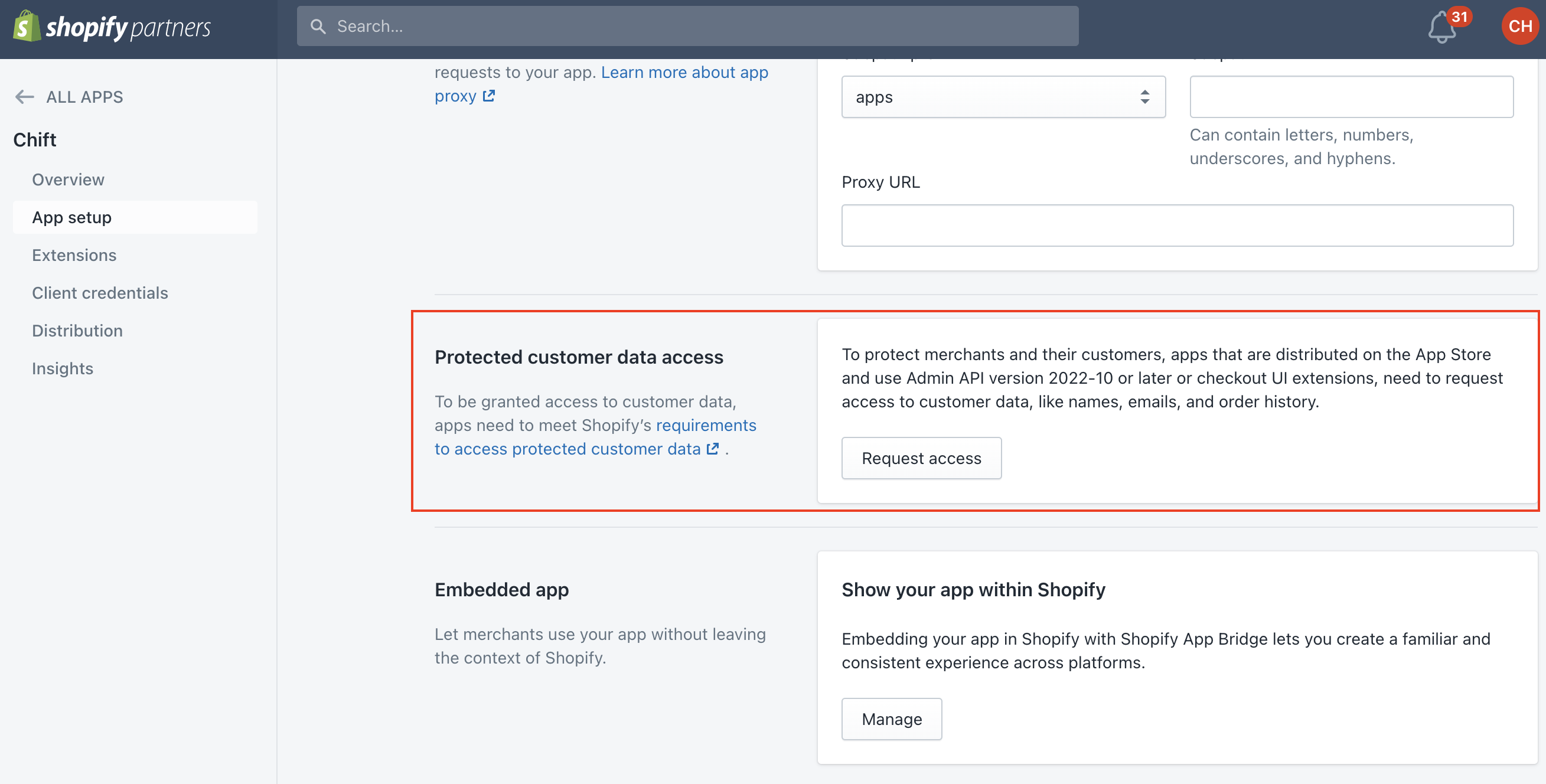
   * If you want to retrieve orders older than 60 days: Go to the 'App setup' page and click on 'Request access' of the 'Read all orders' box
3. Configure your OAuth2 application and select the scope "read\_all\_orders". This is done in the parameters of your Shopify account.
   * Menu → “API Access” → select “read all orders” to get a response for orders older than 60 days.
   * In the same section “API Access” → Subsection “Protected customer data access”, select the consumer data you need Shopify to communicate in the API response.
4. Get your application approved by Shopify - To submit your app for approval, you have to:
   * Go to the 'Distribution' page of your newly created Shopify app
   * Click on 'Choose Shopify App Store'
   * Click on 'Choose'
   * Click on 'Create listing'
   * Register to the Shopify App Store (only needed if it is your first Shopify app)
   * Click on 'App visibility'
   * Select 'Unlisted' in the dialog box and click on 'Save'
   * Configure Shopify on your Chift account.

## Test Shopify

To test the software integration, you have the capability to create a sandbox account, within your Shopify partner portal (where you created the OAuth2 application).

## Connect Shopify

To activate a connection with Shopify, users will have to go through the following steps.

* French article: [Help Center - Shopify FR](https://help.chift.app/articles/1709525914-shopify?lang=fr)
* English article: [Help Center - Shopify EN](https://help.chift.app/articles/1709525914-shopify?lang=en)

## Handle customer data protection

The new version of the Shopify API introduced a [customer data protection](https://shopify.dev/apps/store/data-protection/protected-customer-data) policy. This policy requires App creators to ask authorization to be able to retrieve customer data from Shopify. Without this authorization you will not be able to retrieve customers and orders from Shopify. The policy consists of two levels. With the first level you will be able to retrieve customers and orders but with limited data (you don't have access to the name, email, addresses and phone number of the customers). The second level gives you access to all the customer data. Each level is linked to specific requirements. You can find more information about the customer data protection policy and the requirements on the [Shopify dedicated documentation](https://shopify.dev/apps/store/data-protection/protected-customer-data).

To be able to use all the functionalities offered by the eCommerce API you have to meet the level 2 requirements.
The customer data protection settings can be modified via your 'App setup' page.

<img src="https://mintcdn.com/chift/eShhUiVRq1jW2mtb/assets/images/shopify/shopify1.png?fit=max&auto=format&n=eShhUiVRq1jW2mtb&q=85&s=4e1cff1b2da76360252e85e91a798111" alt="shopify1" width="2618" height="1328" data-path="assets/images/shopify/shopify1.png" />

## Shopify coverage

<CoverageIframe api="ecommerce" connectors="Shopify" />
