> ## Documentation Index
> Fetch the complete documentation index at: https://docs.chift.eu/llms.txt
> Use this file to discover all available pages before exploring further.

# Fortnox

export const OverviewLegend = ({showTitle = true}) => <blockquote>
    {showTitle && <p>
        <strong>Overview legend 🧭</strong>
      </p>}
    <table>
      <thead>
        <tr>
          <th>Column</th>
          <th>Value</th>
          <th>Meaning</th>
        </tr>
      </thead>
      <tbody>
        <tr>
          <td>Geography</td>
          <td>🇫🇷 FR · 🇧🇪 BE · …</td>
          <td>Countries where the connector is officially supported.</td>
        </tr>
        <tr>
          <td rowSpan={3}>Software type</td>
          <td>SaaS</td>
          <td>Through API.</td>
        </tr>
        <tr>
          <td>On-premise (local agent)</td>
          <td>
            Software running locally — installation of a local agent is
            required.
          </td>
        </tr>
        <tr>
          <td>On-premise (API)</td>
          <td>Software running locally — API available.</td>
        </tr>
        <tr>
          <td rowSpan={2}>Status</td>
          <td>🔵 Live</td>
          <td>Connector is generally available and production-ready.</td>
        </tr>
        <tr>
          <td>🟣 Beta</td>
          <td>
            Connector is in beta — usable in production but may still evolve.
          </td>
        </tr>
        <tr>
          <td>Multi folder</td>
          <td>✅ Yes / ❌ No</td>
          <td>
            Connection to multiple accounting folders at the same time (see{' '}
            <a href="/developer-guides/api-guides/accounting/folders">
              accounting folders guide
            </a>
            ).
          </td>
        </tr>
        <tr>
          <td>Rate limits</td>
          <td>✅ No / ❌ Yes</td>
          <td>Whether the target software sets rate limits on API calls.</td>
        </tr>
        <tr>
          <td rowSpan={3}>API keys</td>
          <td>❎ No</td>
          <td>
            No API keys required (OAuth2 client secret and client ID). No
            requirements to activate the connector — you can create a
            connection.
          </td>
        </tr>
        <tr>
          <td>🔑</td>
          <td>
            Keys are required to activate the connector. Chift cannot act as
            intermediary to obtain them; we can still assist with steps to get
            keys directly from the software provider.
          </td>
        </tr>
        <tr>
          <td>🔑 ☑️ via Chift</td>
          <td>
            Keys are required to activate the connector. You can go through
            Chift to get the keys (intermediary or partnership keys). An
            approval process may still apply, but you do not need to request
            keys from the vendor on your own.
          </td>
        </tr>
        <tr>
          <td rowSpan={3}>Approval / certification process</td>
          <td>⚡ Instant</td>
          <td>
            No keys required, or Chift can encode their keys for you when
            requested. Activation is instantaneous.
          </td>
        </tr>
        <tr>
          <td>🟢 Approval — [Duration]</td>
          <td>
            Approval will be granted. The vendor may require information or app
            configuration in a developer portal before issuing keys.
          </td>
        </tr>
        <tr>
          <td>🟠 Approval — [Duration]</td>
          <td>
            Approval is not guaranteed — often due to integration strategy; the
            vendor may do a deeper assessment (competitors, partnership
            requirements, and similar).
          </td>
        </tr>
        <tr>
          <td rowSpan={2}>Activation time</td>
          <td>⚡ Instant</td>
          <td>
            If no keys are required, or Chift has keys ready to share with you.
          </td>
        </tr>
        <tr>
          <td>Time</td>
          <td>
            Estimated time to get the connector activated in production as a
            result of the approval or certification process (e.g. ⏱️ 2 days, 1
            week).
          </td>
        </tr>
        <tr>
          <td rowSpan={3}>Extra fees — software editor</td>
          <td>❎ No</td>
          <td>No fees charged by the software editor.</td>
        </tr>
        <tr>
          <td>💰 🕹️</td>
          <td>Fees associated with obtaining a testing account.</td>
        </tr>
        <tr>
          <td>💰 🔑</td>
          <td>Fees charged to get API keys.</td>
        </tr>
        <tr>
          <td rowSpan={2}>Extra fees — end user</td>
          <td>❎ No</td>
          <td>The end user does not pay extra to get integrated.</td>
        </tr>
        <tr>
          <td>💰 Yes</td>
          <td>The end user must pay extra to get integrated.</td>
        </tr>
        <tr>
          <td>Comments on costs</td>
          <td>—</td>
          <td>Additional notes on fees or pricing when relevant.</td>
        </tr>
        <tr>
          <td rowSpan={4}>Sandbox account</td>
          <td>✅ via Chift</td>
          <td>Chift can provide you with a sandbox.</td>
        </tr>
        <tr>
          <td>🟠 Only through integrator</td>
          <td>Only the software's integrator can provide a sandbox.</td>
        </tr>
        <tr>
          <td>✅ Self-service</td>
          <td>You can create your own sandbox.</td>
        </tr>
        <tr>
          <td>✅ Trial account</td>
          <td>It is possible to create a trial account.</td>
        </tr>
      </tbody>
    </table>
  </blockquote>;

export const ConnectorCardIframe = ({api = 'accounting', connectors}) => {
  const [theme, setTheme] = React.useState('light');
  React.useEffect(() => {
    const checkTheme = () => {
      const isDark = document.documentElement.classList.contains('dark');
      setTheme(isDark ? 'dark' : 'light');
    };
    checkTheme();
    const observer = new MutationObserver(checkTheme);
    observer.observe(document.documentElement, {
      attributes: true,
      attributeFilter: ['class']
    });
    return () => observer.disconnect();
  }, []);
  const queryParams = new URLSearchParams({
    api,
    theme,
    ...connectors ? {
      connectors
    } : {}
  });
  const iframeUrl = `https://chift-coverage-matrix.s3.eu-west-3.amazonaws.com/connector-card.html?${queryParams.toString()}`;
  return <iframe src={iframeUrl} title={`Chift connector information - ${api}`} style={{
    display: 'block',
    width: '100%',
    height: '480px',
    margin: 0,
    padding: 0,
    border: 'none'
  }} />;
};

export const CoverageIframe = ({api = 'accounting', connectors}) => {
  const [theme, setTheme] = React.useState('light');
  const [isFullscreen, setIsFullscreen] = React.useState(false);
  const [currentIframeUrl, setCurrentIframeUrl] = React.useState(null);
  const iframeRef = React.useRef(null);
  React.useEffect(() => {
    const checkTheme = () => {
      const isDark = document.documentElement.classList.contains('dark');
      setTheme(isDark ? 'dark' : 'light');
    };
    checkTheme();
    const observer = new MutationObserver(checkTheme);
    observer.observe(document.documentElement, {
      attributes: true,
      attributeFilter: ['class']
    });
    return () => observer.disconnect();
  }, []);
  React.useEffect(() => {
    const handleFullscreenChange = () => {
      setIsFullscreen(!!document.fullscreenElement);
    };
    document.addEventListener('fullscreenchange', handleFullscreenChange);
    return () => document.removeEventListener('fullscreenchange', handleFullscreenChange);
  }, []);
  React.useEffect(() => {
    const handleMessage = event => {
      if (!event.origin.includes('chift-coverage-matrix.s3.eu-west-3.amazonaws.com')) return;
      if (event.data?.type === 'urlChange' && event.data?.url) {
        setCurrentIframeUrl(event.data.url);
      }
    };
    window.addEventListener('message', handleMessage);
    return () => window.removeEventListener('message', handleMessage);
  }, []);
  const queryParams = new URLSearchParams({
    api,
    theme,
    ...connectors ? {
      connectors
    } : {}
  });
  const iframeUrl = `https://chift-coverage-matrix.s3.eu-west-3.amazonaws.com/coverage.html?${queryParams.toString()}`;
  const openUrl = currentIframeUrl || iframeUrl;
  const toggleFullscreen = () => {
    if (!document.fullscreenElement) {
      iframeRef.current?.requestFullscreen();
    } else {
      document.exitFullscreen();
    }
  };
  const isDark = theme === 'dark';
  const buttonStyle = {
    display: 'inline-flex',
    alignItems: 'center',
    gap: '8px',
    padding: '4px 12px',
    fontSize: '14px',
    fontWeight: '500',
    color: isDark ? '#d4d4d4' : '#374151',
    backgroundColor: 'transparent',
    border: `1px solid ${isDark ? '#404040' : '#e5e7eb'}`,
    borderRadius: '12px',
    cursor: 'pointer',
    textDecoration: 'none',
    transition: 'all 0.15s ease'
  };
  const hoverBg = isDark ? 'rgba(255,255,255,0.05)' : 'rgba(0,0,0,0.03)';
  const hoverBorder = isDark ? '#525252' : '#d1d5db';
  const defaultBg = 'transparent';
  const defaultBorder = isDark ? '#404040' : '#e5e7eb';
  return <>
  <div style={{
    display: 'flex',
    justifyContent: 'flex-end',
    gap: '12px',
    marginBottom: '8px'
  }}>
    <button onClick={toggleFullscreen} style={buttonStyle} onMouseEnter={e => {
    e.target.style.backgroundColor = hoverBg;
    e.target.style.borderColor = hoverBorder;
  }} onMouseLeave={e => {
    e.target.style.backgroundColor = defaultBg;
    e.target.style.borderColor = defaultBorder;
  }}>
      <svg width="16" height="16" viewBox="0 0 24 24" fill="none" stroke="currentColor" strokeWidth="2" strokeLinecap="round" strokeLinejoin="round">
        {isFullscreen ? <>
            <polyline points="4 14 10 14 10 20"></polyline>
            <polyline points="20 10 14 10 14 4"></polyline>
            <line x1="14" y1="10" x2="21" y2="3"></line>
            <line x1="3" y1="21" x2="10" y2="14"></line>
          </> : <>
            <polyline points="15 3 21 3 21 9"></polyline>
            <polyline points="9 21 3 21 3 15"></polyline>
            <line x1="21" y1="3" x2="14" y2="10"></line>
            <line x1="3" y1="21" x2="10" y2="14"></line>
          </>}
      </svg>
      {isFullscreen ? 'Exit Fullscreen' : 'Fullscreen'}
    </button>
    <a href={iframeUrl} target="_blank" rel="noopener noreferrer" style={buttonStyle} onMouseEnter={e => {
    e.target.style.backgroundColor = hoverBg;
    e.target.style.borderColor = hoverBorder;
  }} onMouseLeave={e => {
    e.target.style.backgroundColor = defaultBg;
    e.target.style.borderColor = defaultBorder;
  }}>
      <svg width="16" height="16" viewBox="0 0 24 24" fill="none" stroke="currentColor" strokeWidth="2" strokeLinecap="round" strokeLinejoin="round">
        <path d="M18 13v6a2 2 0 0 1-2 2H5a2 2 0 0 1-2-2V8a2 2 0 0 1 2-2h6"></path>
        <polyline points="15 3 21 3 21 9"></polyline>
        <line x1="10" y1="14" x2="21" y2="3"></line>
      </svg>
      Open in new tab
    </a>
  </div>
  <iframe ref={iframeRef} src={iframeUrl} title={`Chift Coverage Matrix - ${api}`} style={{
    height: 'max(500px, 80vh)'
  }} className="w-full" allowFullScreen />
  <blockquote>
    <p>
      <strong>Matrix Legend 🧭</strong>
    </p>
    <table>
      <thead>
        <tr>
          <th>Status</th>
          <th>Meaning</th>
        </tr>
      </thead>
      <tbody>
        <tr>
          <td>✅ Implemented</td>
          <td>Endpoint is implemented and available.</td>
        </tr>
        <tr>
          <td>❌ Not supported</td>
          <td>
            Endpoint is not supported by the target software (connector
            limitation). Cannot be implemented.
          </td>
        </tr>
        <tr>
          <td>💬 On request</td>
          <td>
            Endpoint is not implemented but feasibility is validated. Can be
            implemented on request — contact your Chift point of contact to
            discuss scope and timing.
          </td>
        </tr>
        <tr>
          <td>🔎 To be analyzed</td>
          <td>
            Endpoint is not implemented and feasibility has not yet been fully
            assessed. Analysis is pending.
          </td>
        </tr>
      </tbody>
    </table>
  </blockquote>
</>;
};

<ConnectorCardIframe api="accounting" connectors="Fortnox" />

<Accordion title="Overview Legend 🧭">
  <OverviewLegend showTitle={false} />
</Accordion>

## Introduction

Fortnox is the leading cloud accounting and business software in Sweden and one of the largest in the Nordics, widely used by SMEs and accounting firms. The Chift Fortnox connector exposes Fortnox's bookkeeping features through Chift's unified Accounting API (journals, chart of accounts, ledger/bank accounts, journal & financial entries).

<Info>
  **Costs & production options**

  * **Integrator (Chift's client):** creates their own Fortnox developer account and Fortnox app (Client ID / Client Secret). Developing and testing is **free**.
  * **Private App (production):** no additional requirement — deploy your integration for your own customers.
  * **Public Marketplace App (production):** requires an App Partner agreement + Fortnox certification of your app. If listed on the Fortnox Marketplace, Fortnox operates a revenue-share model (partner receives **75%**).

  For up-to-date pricing and partner conditions, see the [Fortnox Developer program](https://www.fortnox.se/developer).
</Info>

## Configure Fortnox

**Prerequisite(s)**

* Your own Fortnox app (**Client ID** + **Client Secret**).

**Activation Process**

**1. Register as a Fortnox developer**

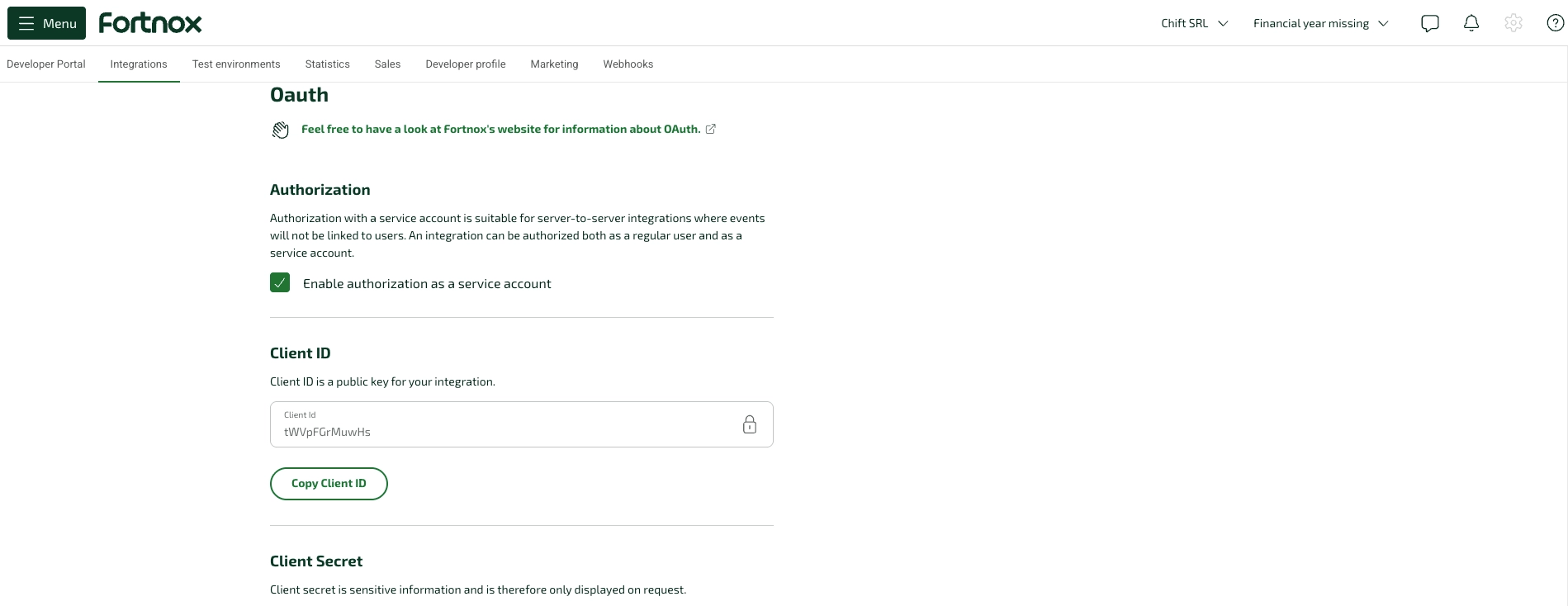
Before you can make any Fortnox API calls, register as a developer at [fortnox.se/developer](https://www.fortnox.se/developer). This gives you access to the Developer Portal where you create your integration and receive your **Client ID** and **Client Secret**.

<Frame>
  <img src="https://mintcdn.com/chift/Eujs9ExSIUDg5pbq/images/connectors/accounting/fortnox/fortnox-oauth-client-id.png?fit=max&auto=format&n=Eujs9ExSIUDg5pbq&q=85&s=2cf0042e0ff9c6aa4c1cbdbab284b924" alt="Fortnox Developer Portal – OAuth Client ID configuration" width="1899" height="734" data-path="images/connectors/accounting/fortnox/fortnox-oauth-client-id.png" />
</Frame>

**2. Create your integration**

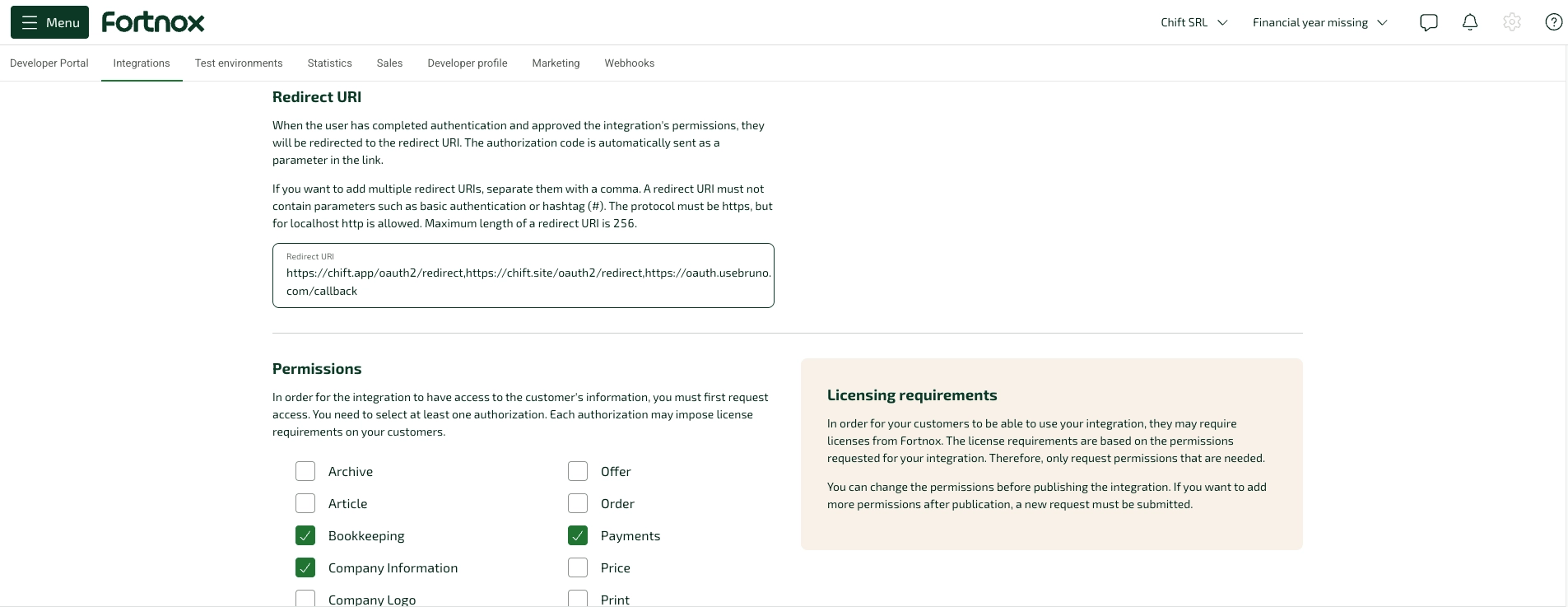
Once registered, create an integration record. This is where you configure your **redirect URI**, define your requested **scopes**, and optionally submit for Fortnox Marketplace listing.

Set the redirect URI to:

```text theme={null}
https://chift.app/oauth2/redirect
```
<Frame>
  <img src="https://mintcdn.com/chift/Eujs9ExSIUDg5pbq/images/connectors/accounting/fortnox/fortnox-redirect-uri-permissions.png?fit=max&auto=format&n=Eujs9ExSIUDg5pbq&q=85&s=0f01349af7cd3f1bd702737261af542b" alt="Fortnox Developer Portal – Redirect URI and Permissions" width="1905" height="737" data-path="images/connectors/accounting/fortnox/fortnox-redirect-uri-permissions.png" />
</Frame>

<Warning>
  The scopes enabled on your Fortnox integration must **exactly match** the scopes requested in your OAuth app's authorization flow. Any mismatch will cause the authorization to fail with `2000663: Har inte behörighet för scope`. See the [Fortnox scopes documentation](https://www.fortnox.se/developer/guides-and-good-to-know/scopes).
</Warning>

**Common scopes for bookkeeping:**

`companyinformation`, `invoice`, `supplierinvoice`, `customer`, `supplier`, `bookkeeping`, `payment`, `settings`, `costcenter`, `project`, `inbox`, `connectfile`.

<Note>
  Further documentation is coming to explain which scopes to enable depending on your Chift use case.
</Note>

**3. Activate the connector on Chift**

In your Chift back office, open the Fortnox connector and toggle activation. You will be prompted to paste your **Client ID** and **Client Secret**. End users will then be redirected to Fortnox to authorize access via OAuth2.

## Test Fortnox

Create up to **30 test companies** from the [Test environments](https://developer.fortnox.se/my-account/test-environments) tab of the Fortnox Developer Portal. Test companies behave like real Fortnox companies (same [rate limits](#rate-limits) apply), come with the standard **BAS** chart of accounts and no pre-filled data.

## Connect Fortnox

To activate a connection with Fortnox, users will have to go through the following steps:

* Help Center article: [Help Center - Fortnox EN](https://help.chift.app/articles/8379391627-fortnox?lang=en)

## Rate limits

* **300 requests / minute** per Client ID + tenant (i.e. per access token), enforced via a **sliding window of 5 seconds** → **25 requests / 5 s**.
* Exceeding the limit returns **HTTP 429 (Too Many Requests)**; bursts are throttled until the average falls back under the limit.
* The limit scales per tenant: each connected Fortnox company has its own access token and therefore its own 300 req/min budget.

## Technical limitations & specificities

* **Single company currency — SEK.** Fortnox accounts have no per-account currency. On a bank account, the currency is informational (surfaced in the account name), not enforced. On entries, a currency ≠ company currency requires an `exchange_rate` (otherwise `ERROR_CURRENCY_NOT_ALLOWED`), and amounts are converted to the company currency.
* **Account & journal types are derived, not stored.** `journal_type` and ledger account type are derived from the BAS number ranges / predefined series. A type sent on create is not stored — it's ignored, or validated for consistency (an account type inconsistent with the number range is rejected).
* **Third-party accounts (customer/supplier/employee) on entries.** Fortnox has no native journal ↔ account link and supplier objects carry no dedicated ledger account, so third-party lines must specify `force_general_account` (otherwise a clear "not supported" error is returned).
* **Format constraints:** ledger account number = numeric, `1000–9999`; journal (VoucherSeries) code = 1–10 chars, digits / UPPERCASE only.
* `posted `**is always** `true` for entries— Fortnox posts vouchers immediately (the `posted` input has no effect).
* **Financial entries (bank/cash operations):** items contain only the counterpart line(s) with a signed amount (`+` = into the bank, `−` = out); the bank ledger account is passed via the mandatory query param `financial_counterpart_account`, and the connector adds the balancing bank line (net of the amounts).
* **Chart-of-accounts type filter** exposes only 6 of the 10 possible account types (`bank`, `cash`, `income`, `expense`, `other_expense`, `vat`) — `receivable`, `payable`, `other_financial`, `other` are returned in responses but cannot be filtered.

## Coverage

<CoverageIframe api="accounting" connectors="Fortnox" />
