> ## Documentation Index
> Fetch the complete documentation index at: https://docs.chift.eu/llms.txt
> Use this file to discover all available pages before exploring further.
# Email reminders
Email reminders can be used to help you to remind your consumers to complete the activation process in an automated way.
Two types of emails are available:
* Consumer with inactive connection: sent to consumers that have no active connection
* Consumer with incomplete sync: sent to consumers that have a sync but the connection or the mappings are not correctly set (only if you are using syncs)
Consumer with inactive connection will only be sent if the consumer has no sync.\
Otherwise, consumer with incomplete sync will be used.
Email reminders are only sent to consumers that have an email address.\
You can set up an email address for your consumers when you create them through the UI or the API.\
If your consumers are exposed through a public marketplace, they will always have an email address.
## Email settings
You have the flexibility in how these emails are delivered to your consumers. Through the settings page, you can customize two key aspects:
1. Set when reminder emails should be sent by choosing an interval of 1, 3, or 5 days between each email.
2. Specify how many reminder emails a consumer should receive in total by selecting either None, one, two, or three reminders.
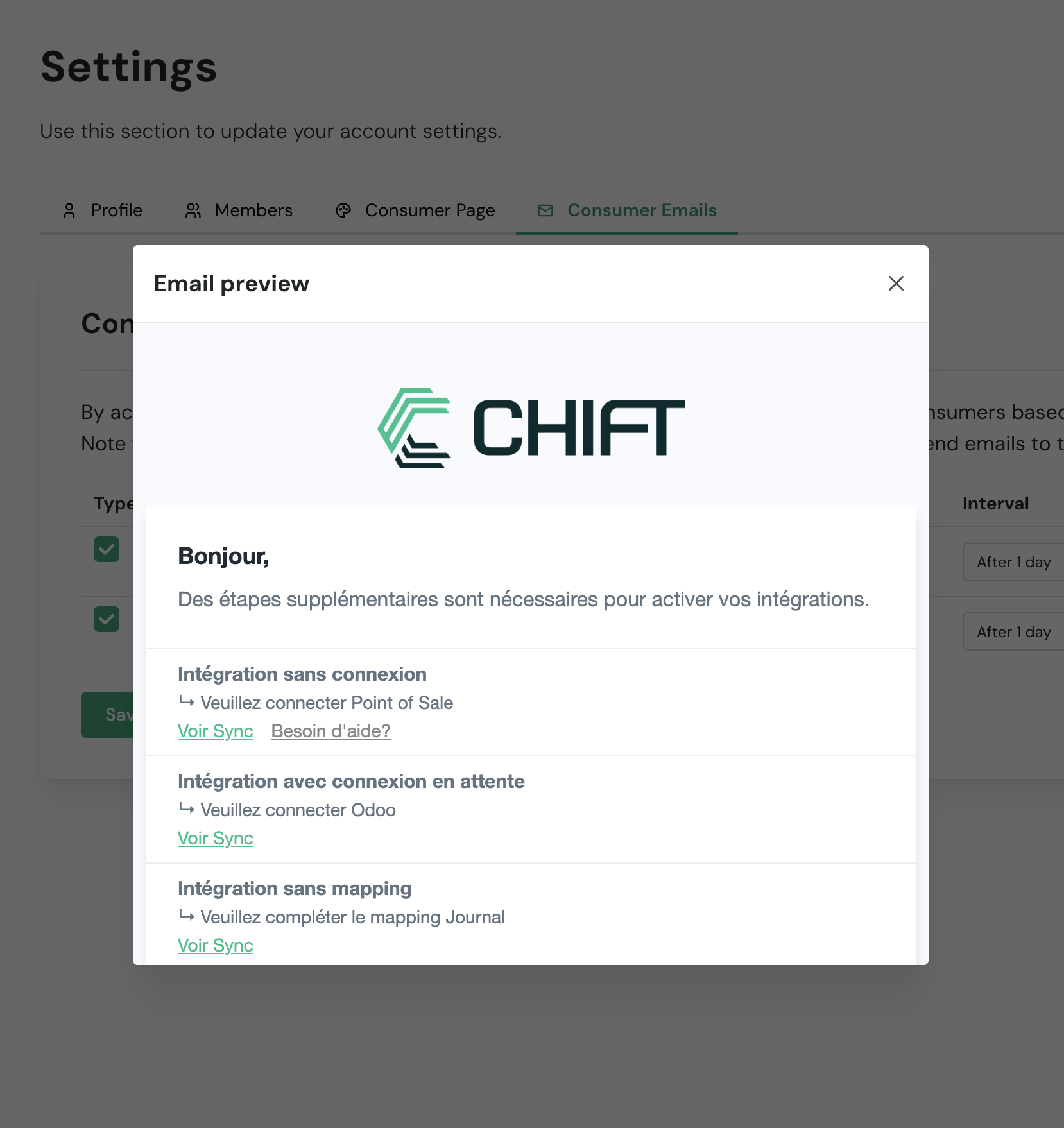
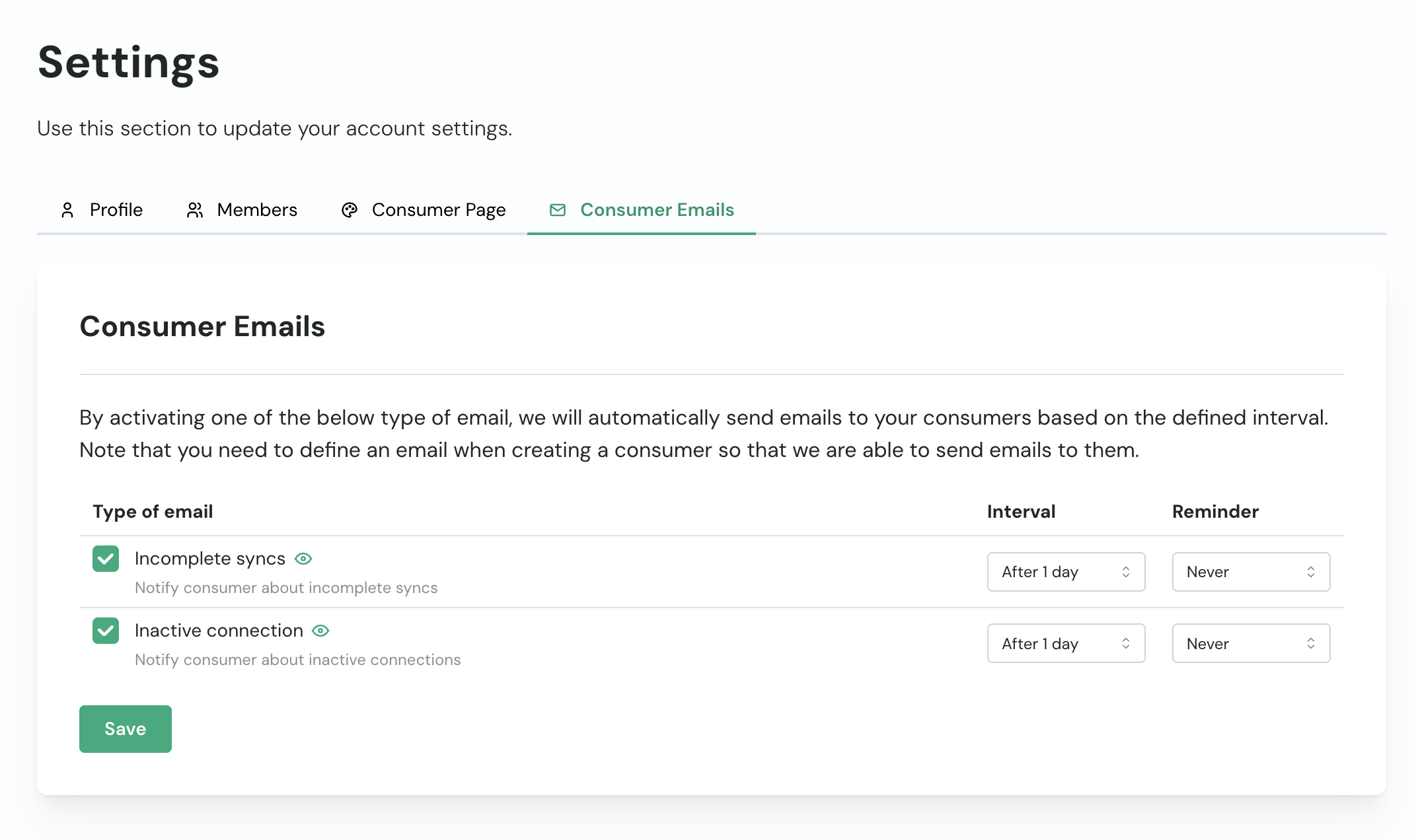 Next to each email type, an eye icon allows clients to preview the email content sent to consumers. The logo and colors used in these emails can be customized in the [“Consumer Page” tab](/back-office/getting-started/configure-account#configure-the-public-pages-of-your-organization).
 ## Email dispatch
Every day at 6:00 UTC (7:00 Belgium time), our system runs a dispatch job that processes each type of email separately.
Emails are sent from [`support@chift.eu`](mailto:support@chift.eu).
We also create a consumer log entry when an email is dispatched, which appears in the corresponding consumer or sync log page.
## Email types
### Consumers with inactive connection
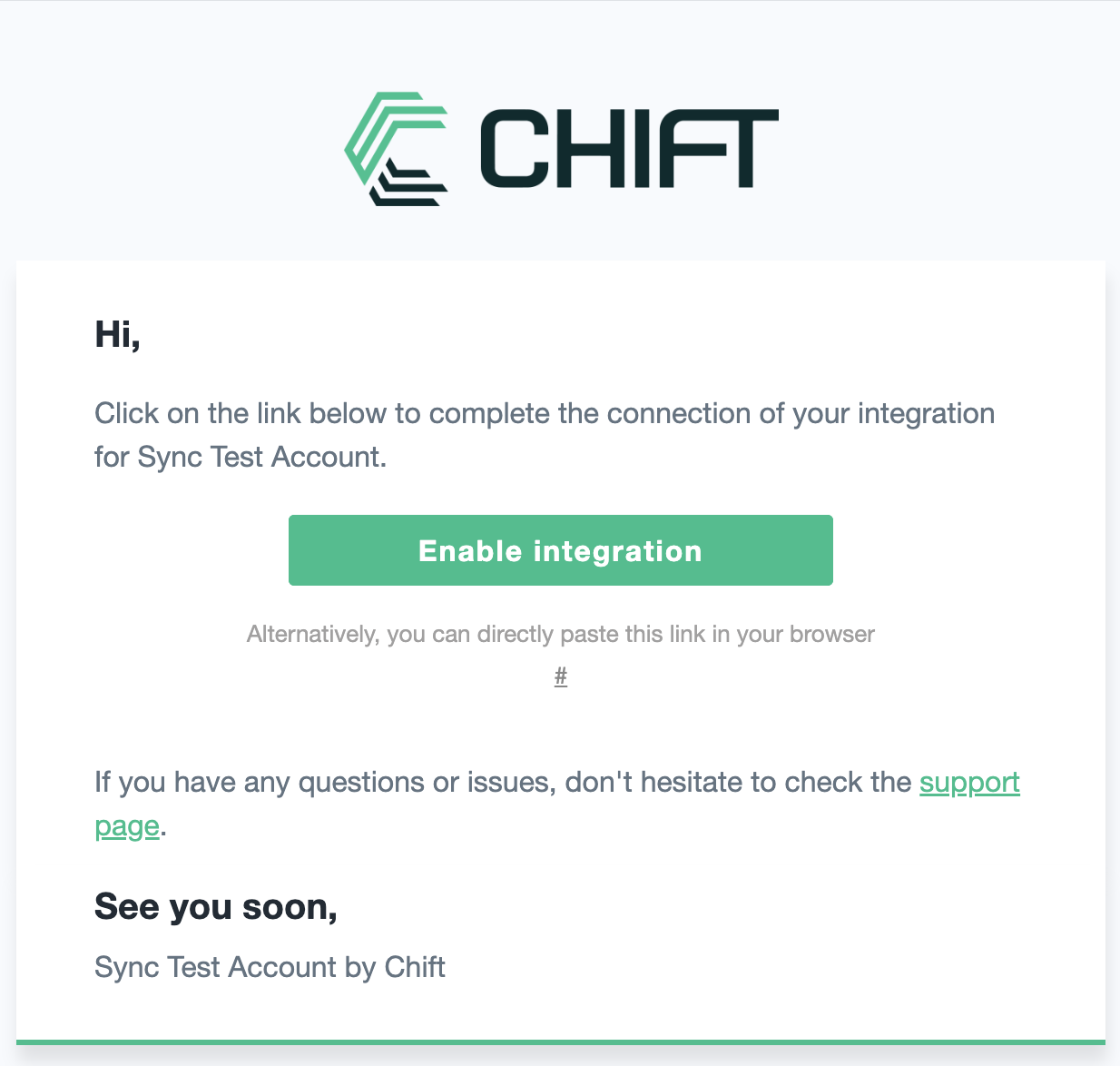
For consumers without syncs, we check their connection status:
* No Connection: Proceed with a generic reminder email.
* Pending Connection: Proceed with a customized email that includes the connector name and a link to the connector help page.
Once we've determined a consumer should receive an email, we check if the configured interval has passed since their last communication before dispatching either their first email or next reminder.
## Email dispatch
Every day at 6:00 UTC (7:00 Belgium time), our system runs a dispatch job that processes each type of email separately.
Emails are sent from [`support@chift.eu`](mailto:support@chift.eu).
We also create a consumer log entry when an email is dispatched, which appears in the corresponding consumer or sync log page.
## Email types
### Consumers with inactive connection
For consumers without syncs, we check their connection status:
* No Connection: Proceed with a generic reminder email.
* Pending Connection: Proceed with a customized email that includes the connector name and a link to the connector help page.
Once we've determined a consumer should receive an email, we check if the configured interval has passed since their last communication before dispatching either their first email or next reminder.
 ### Consumer with incomplete sync
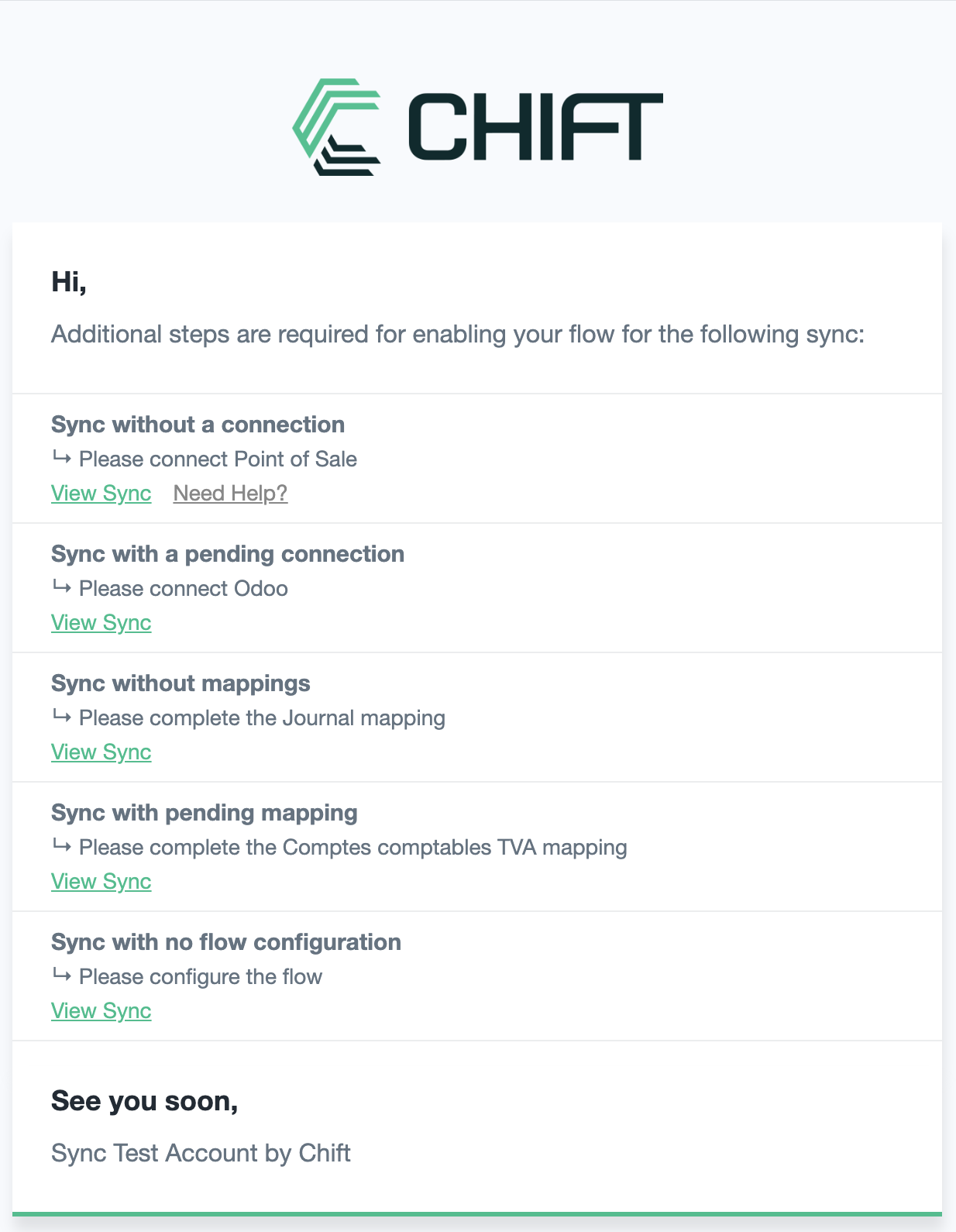
For each consumer, we check their connection and mapping status.
The consumer can be in the following statuses:
* No connection
* Pending connection
* No mapping completed
* Pending mapping
* Missing configuration
Each status appears in the email with its own message. If a documentation url is present for the sync for your users, it will display as a help link alongside the sync.
### Consumer with incomplete sync
For each consumer, we check their connection and mapping status.
The consumer can be in the following statuses:
* No connection
* Pending connection
* No mapping completed
* Pending mapping
* Missing configuration
Each status appears in the email with its own message. If a documentation url is present for the sync for your users, it will display as a help link alongside the sync.
 Transactional emails are only dispatched for the **production environment** of the client’s account.\
Consumers in the sandbox environment will not receive any transactional emails.
## Email logs
The email logs show a chronological history of reminder emails sent to your consumers, whether dispatched automatically or sent manually. The page helps you track communication activity and measure how reminders influence activation.
Transactional emails are only dispatched for the **production environment** of the client’s account.\
Consumers in the sandbox environment will not receive any transactional emails.
## Email logs
The email logs show a chronological history of reminder emails sent to your consumers, whether dispatched automatically or sent manually. The page helps you track communication activity and measure how reminders influence activation.
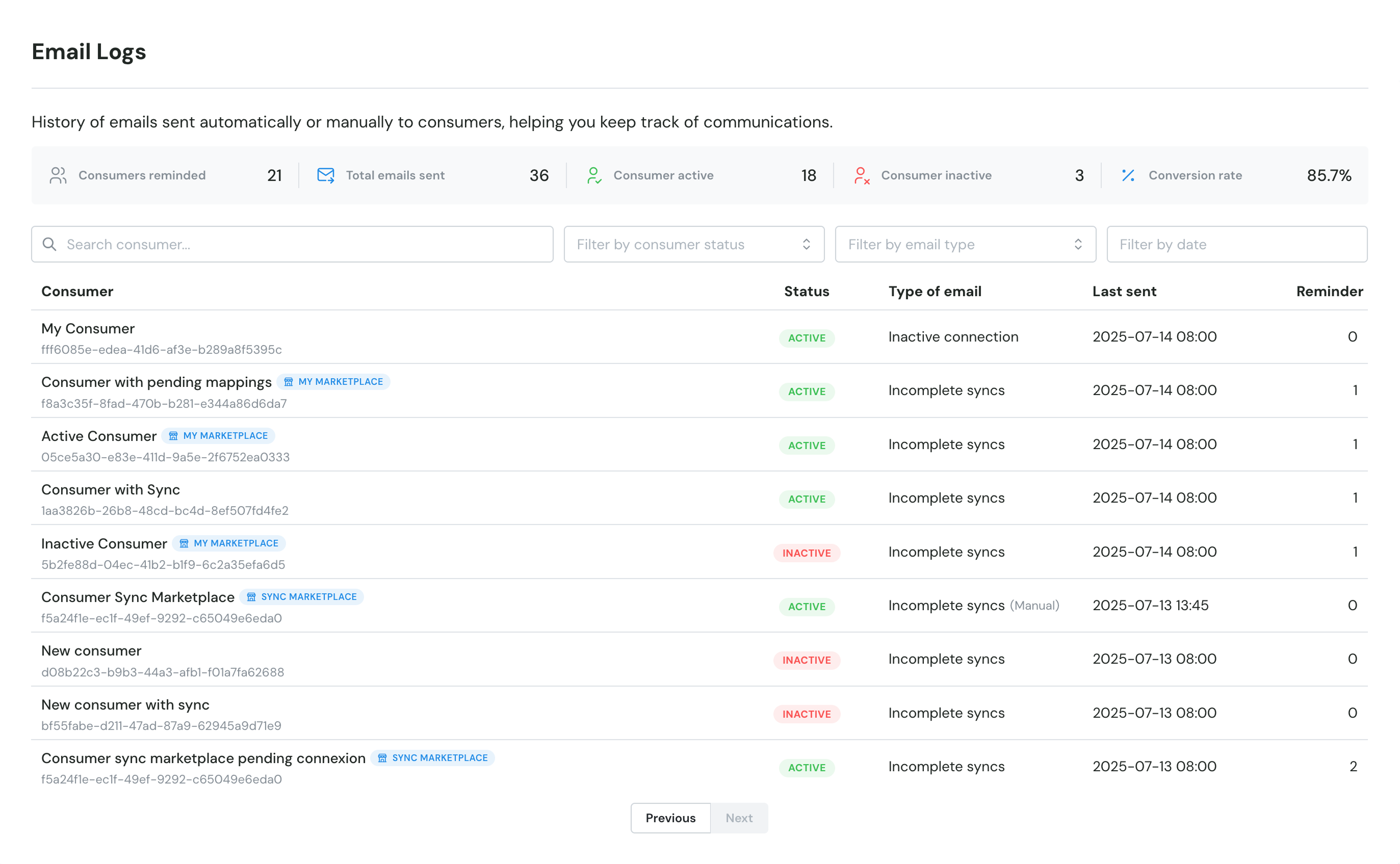 At the top of the table, a summary section displays key metrics such as the number of consumers reminded, total emails sent, active consumers, inactive consumers, and the conversion rate.
Each entry in the table corresponds to a specific email sent to a consumer. For every email, you can see when it was sent, what type of reminder it was, how many reminders the consumer has already received, and their current connection status at that time.
At the top of the table, a summary section displays key metrics such as the number of consumers reminded, total emails sent, active consumers, inactive consumers, and the conversion rate.
Each entry in the table corresponds to a specific email sent to a consumer. For every email, you can see when it was sent, what type of reminder it was, how many reminders the consumer has already received, and their current connection status at that time.