> ## Documentation Index
> Fetch the complete documentation index at: https://docs.chift.eu/llms.txt
> Use this file to discover all available pages before exploring further.
# How to contact Chift support
For integration issues (a failing consumer, connection or API call), try [Chifty](/ai/chifty) first: it diagnoses the problem from your account data and tells you what to do, without waiting for support.
If you need help, there are two ways to reach our support team:
## Platform bot (recommended)
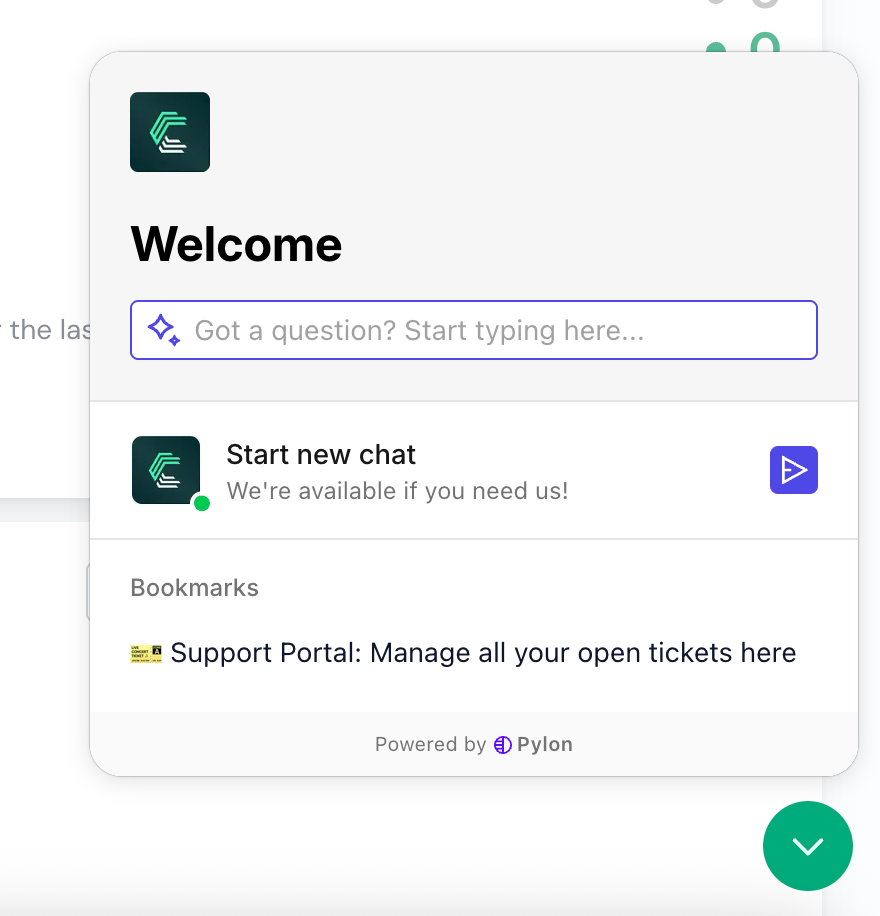 The fastest and most efficient way to contact support is through the built-in messenger on the Chift platform.\
Using this method allows us to:
* Instantly access the context of your account
* Provide faster and more accurate responses
With the messenger, you can:
* Start a new conversation with our Support AI assistant — this will automatically create a ticket in our support platform
* Access and follow up on existing conversations
* Quickly open the support ticket portal
#### How to use the messenger
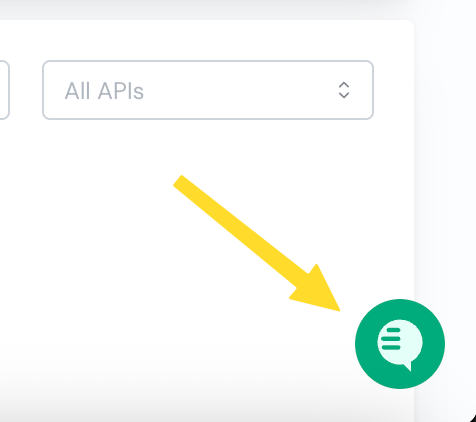
1. Click on the chat icon in the bottom-right corner of any page on the platform.
The fastest and most efficient way to contact support is through the built-in messenger on the Chift platform.\
Using this method allows us to:
* Instantly access the context of your account
* Provide faster and more accurate responses
With the messenger, you can:
* Start a new conversation with our Support AI assistant — this will automatically create a ticket in our support platform
* Access and follow up on existing conversations
* Quickly open the support ticket portal
#### How to use the messenger
1. Click on the chat icon in the bottom-right corner of any page on the platform.
 2. Click **Start a new chat** and describe the issue you're experiencing, including as much context as possible.
> 💡 **Important:** If you're reporting a bug, we strongly recommend starting the conversation **from the page of the consumer where the issue occurs**. This way, all relevant information from that consumer is automatically included in the ticket, which speeds up the investigation and resolution.
3. Once submitted, our support team will review your message and get back to you as soon as possible.
## Support form
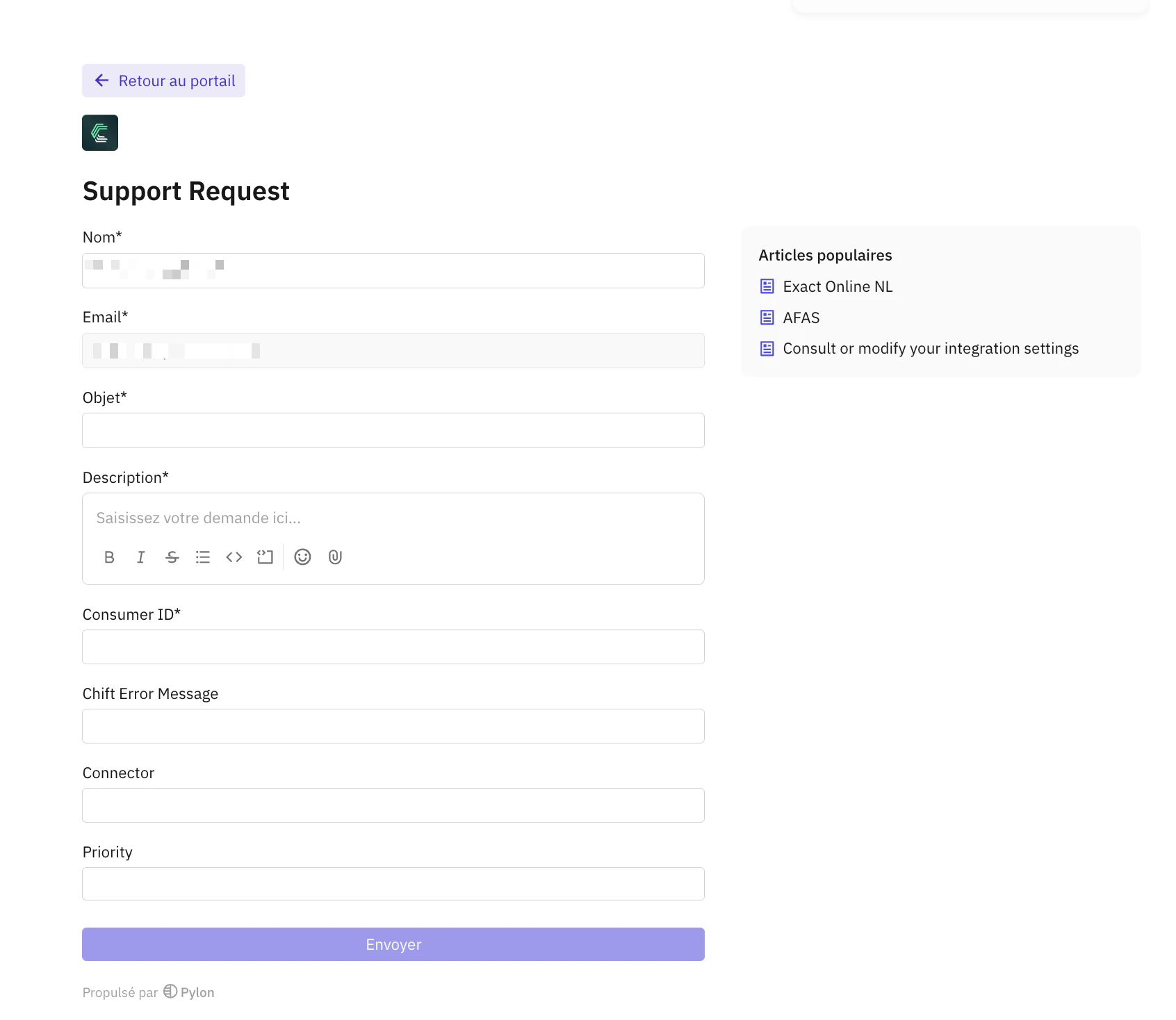
If you prefer to use a more structured form to create your support request, you can go to the [support portal](https://support.chift.app/form/support-request) to submit your ticket.
From this [Ticket Portal](https://support.chift.app/), you will also be able to view and manage all your existing tickets.
2. Click **Start a new chat** and describe the issue you're experiencing, including as much context as possible.
> 💡 **Important:** If you're reporting a bug, we strongly recommend starting the conversation **from the page of the consumer where the issue occurs**. This way, all relevant information from that consumer is automatically included in the ticket, which speeds up the investigation and resolution.
3. Once submitted, our support team will review your message and get back to you as soon as possible.
## Support form
If you prefer to use a more structured form to create your support request, you can go to the [support portal](https://support.chift.app/form/support-request) to submit your ticket.
From this [Ticket Portal](https://support.chift.app/), you will also be able to view and manage all your existing tickets.
 ## Email support
You can also contact our support team by emailing [support@chift.eu](mailto:support@chift.eu).
To help us resolve your issue faster, please include:
* Your account name
* A detailed description of the problem
* The consumer(s) affected
* Any relevant screenshots or error messages
👉 However, for the best experience and quickest resolution, we highly recommend using the **platform messenger**, as it provides more context about your account and usage.
## Next step: Manage your tickets
👉 Once your ticket is created, you can manage, track, and view all ticket details through our [Ticket Portal](/back-office/support/ticket-portal).
## Email support
You can also contact our support team by emailing [support@chift.eu](mailto:support@chift.eu).
To help us resolve your issue faster, please include:
* Your account name
* A detailed description of the problem
* The consumer(s) affected
* Any relevant screenshots or error messages
👉 However, for the best experience and quickest resolution, we highly recommend using the **platform messenger**, as it provides more context about your account and usage.
## Next step: Manage your tickets
👉 Once your ticket is created, you can manage, track, and view all ticket details through our [Ticket Portal](/back-office/support/ticket-portal).